Project Budget
The budget table — positions, verifying and committing, templates and the Sage integration
Every project has a budget table (default tab Budget). It is only visible to people with budget access in the project and to users with global budget access.
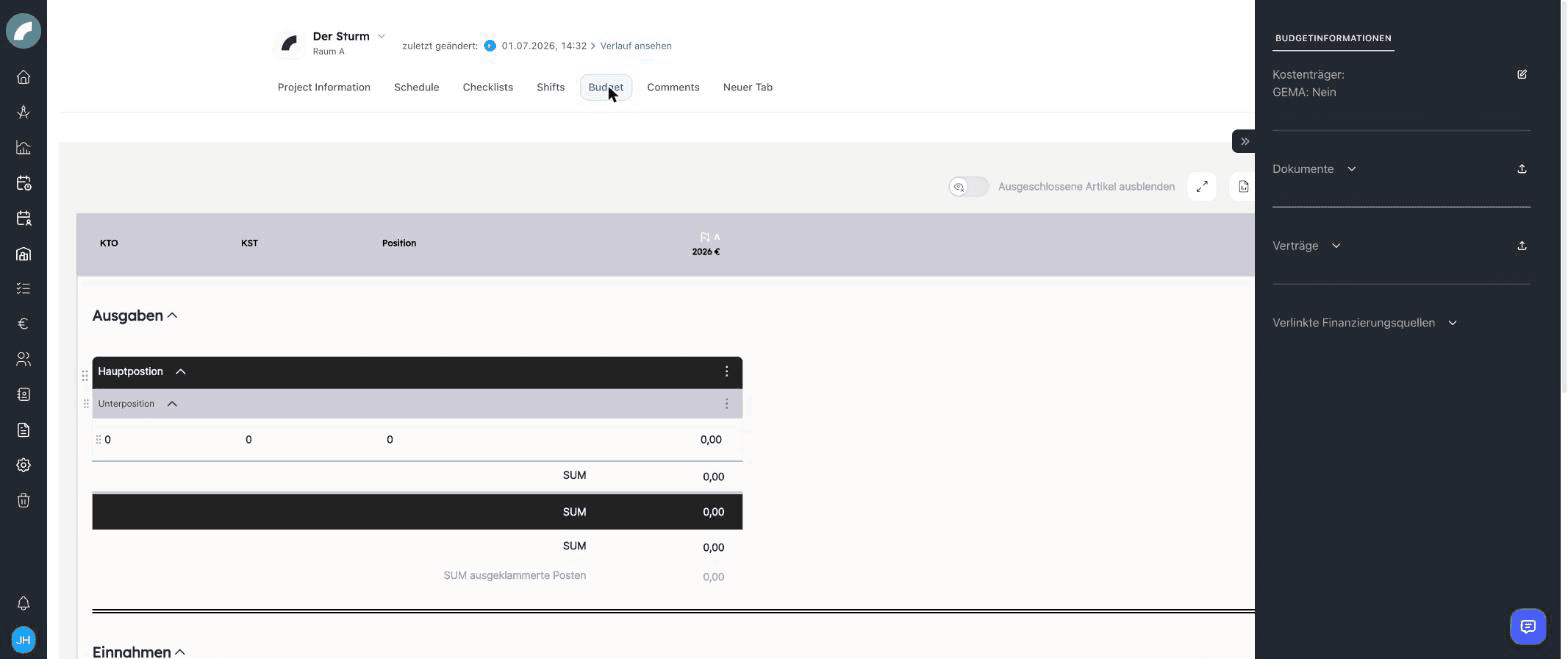
Table structure
The table is organized hierarchically:
- Main positions (e.g. income, artistic expenses) contain
- sub positions (e.g. fees, technology), which in turn contain
- rows with the actual amounts.
The columns are configurable: besides the base columns (KTO, KST, description), further columns can be created, renamed, colored and calculated from other columns via formulas. Cells support comments and calculations; totals run per sub position, per main position and overall.
Exactly one column carries the flag "Relevant for budget": wherever Artwork pulls budget data from projects (e.g. in overviews and evaluations), only this column is used. For newly created columns the flag is set automatically in a sensible way; it can be moved to another column manually at any time — info texts in the table explain the behaviour. Assigning it more than once is not possible.
With the required permissions, positions, rows, and columns can be created, duplicated, renamed, reordered, and deleted. Column colours and comments help distinguish plan, actual, forecast, and explanatory data.
Values and calculations
Cells may contain direct values or calculations based on other cells. Calculated columns are useful for differences, forecasts, and percentages; hierarchical totals update automatically. The source remains visible for Sage postings and other imported values.
Verifying & committing
Two mechanisms make the numbers binding:
- Verifying — main or sub positions are requested for verification and confirmed by authorized people (a four-eyes principle for the budget). Verified positions are marked accordingly.
- Committing — committed ("fixed") positions are locked against changes until they are released again.
Verification confirms a reviewed state, while committing prevents further editing. Both can be applied at different levels and withdrawn when needed, allowing one section to be closed while others remain in progress.
Budget templates
A finished table structure can be saved as a budget template and applied to new projects — so all productions start with the same chart of accounts. Templates are managed centrally (permissions view/edit budget templates); in addition, a project's table can be reset to the base structure.
Templates can standardise hierarchy and column logic as well as row labels. Before resetting a budget, check for project-specific data because the reset intentionally changes the existing table structure.
Accounts & cost centers
Under the budget settings you globally maintain accounts (KTO) and cost centers (KST), which are available for selection in the budget rows, as well as general column settings.
Sage integration
If the Sage100 interface (tool settings) is set up, Artwork pulls booking data from your accounting: bookings are matched to budget rows via KTO/KST; bookings that cannot be matched land in a separate list for manual assignment. Dedicated permissions control who sees project-related or global Sage data.
Unmatched postings can be assigned manually to the appropriate budget row, including in groups. This keeps the table useful when booking texts differ or accounting information is not yet complete.
Funding sources
Budget rows can be linked to funding sources to set grants and third-party funds against the budget — see Funding Sources.
Exports
- Project budget as Excel — the project's table.
- Budget export by deadline — across projects: all budgets whose budget deadline falls within the chosen time range (the field from the creation window).
The project export is intended for one calculation. The deadline export is a cross-project management tool for a selected planning or reporting period.
Project group aggregation
In a project group, columns can be marked as relevant for project groups: when the KTO and KST values match, the group aggregates the numbers of its sub-projects in a dedicated column.