Project Overview & Creating
Work with the project list and create new projects or project groups
Open the project overview via Projects in the sidebar.
The project list
The overview is the personal starting point for daily project work. Filters and sorting are saved per user, so production managers can focus on their current projects while administrators can look specifically for groups, projects without events, or productions with BI data.
- Search — "Search project or artist" finds projects via their linked artists too.
- Pinning — projects can be pinned via the project menu; they then appear at the top of the list for you.
- Sorting — alphabetically or chronologically, each ascending and descending.
- Filters — your selection is saved per user:
- By kind: only project groups, only projects
- By time: show upcoming or past projects
- Other: hide projects without events, only projects without a group, only projects where you are a team member, only productions with BI data
- Project status: only projects with certain statuses
- Trash — deleted projects can be restored or deleted permanently (permission Delete right for all projects).
- Export project list — pass the required overview data on as a table; its columns are defined in the central project overview builder.
- Multi-select — authorised users can select several projects and move them to the trash together.
Last opened project takes you straight back to your most recent work. Pinned projects are a separate, permanent personal favourites list.
Creating a project
The New project button opens the creation window (permission Create & edit own projects or higher). A switch toggles between project and project group.
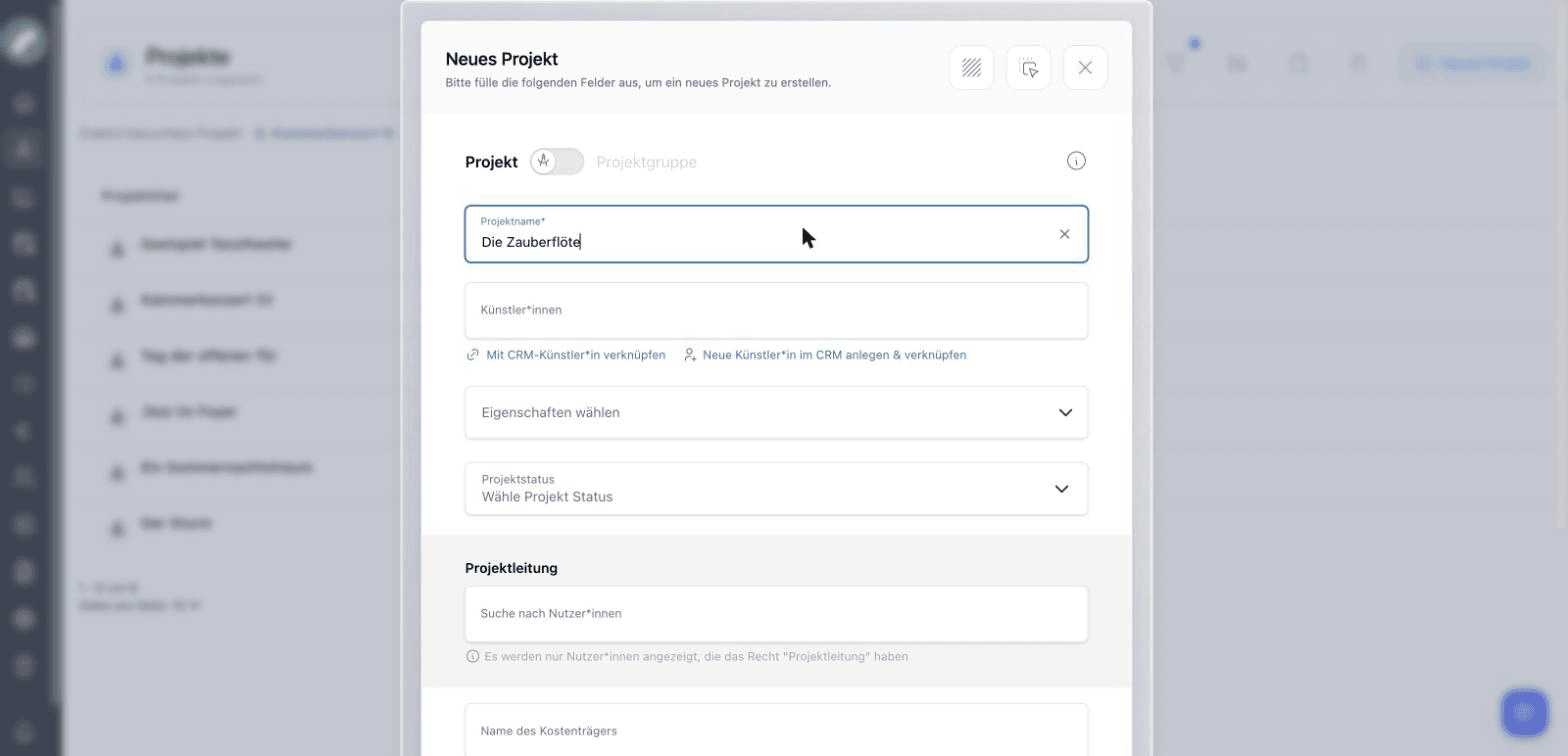
Besides the mandatory project name, the window asks — depending on your venue's creation settings — for:
| Field | Contents |
|---|---|
| Artists | Artists as free text or linked from the CRM |
| Properties | Category, genre and area (multiple selection); one of each can be marked as the main category/genre/area |
| Project status | One of the configured statuses |
| Project management | Users with the permission Be project manager |
| Cost center name | Cost center for the budget evaluation |
| Budget deadline | Cut-off date for the budget export |
| Project group | Assign the project to an existing group right away |
Anyone who creates projects but has no global read access is automatically added to the project team — so the project stays visible to them.
After saving, Artwork opens the new project. These initial details are not final: authorised users can edit them later from the project menu. The main content—description, team, events, checklists, shifts, and budget—is then maintained in the project tabs.
Artists and CRM contacts
Artists can be entered as a name or linked to an existing CRM contact. A link is useful when contact details, company relationships, and other projects involving the same person should remain discoverable. Project search also considers assigned artists.
Project groups
A project group is technically a project itself, with a group flag. Typical use: a festival as the group, the individual concerts as members. Projects can be assigned to a group at creation or later; the group shows its members in a dedicated component. In the budget, columns can be marked as relevant for project groups — the group then aggregates the values of its sub-projects when the account (KTO) and cost center (KST) match.
The header of a project group offers additional actions: add existing projects or create a new project directly inside the group. Member projects link back to their parent group, making it easy to move between a festival, season focus, or tour and its individual productions.
Project group or regular project?
Use a group when several independent projects should be navigated or evaluated together. Several events belonging to the same production will usually be better represented by one regular project with multiple events.
Duplicating instead of templates
There is no "project from template" — instead, an existing project is duplicated via its menu and serves as the blueprint. Budget templates exist as a separate concept on top.
A duplicate is an independent new project. Review its name, team, period, status, and project-specific content afterwards. Later changes to the source and the copy are not synchronised.
Trash and recovery
Moving a project to the trash removes it from normal work without deleting it immediately. It can be restored from the project trash. Permanent deletion requires a broader permission because events, files, budgets, and shift data may all be connected to the project.