The Project View
Tabs and sidebars, project team, checklists, comments, documents and contracts
Clicking a project opens the project view. Its structure — which tabs exist and what they contain — comes from the tab construction kit; here we describe the default configuration as shipped.
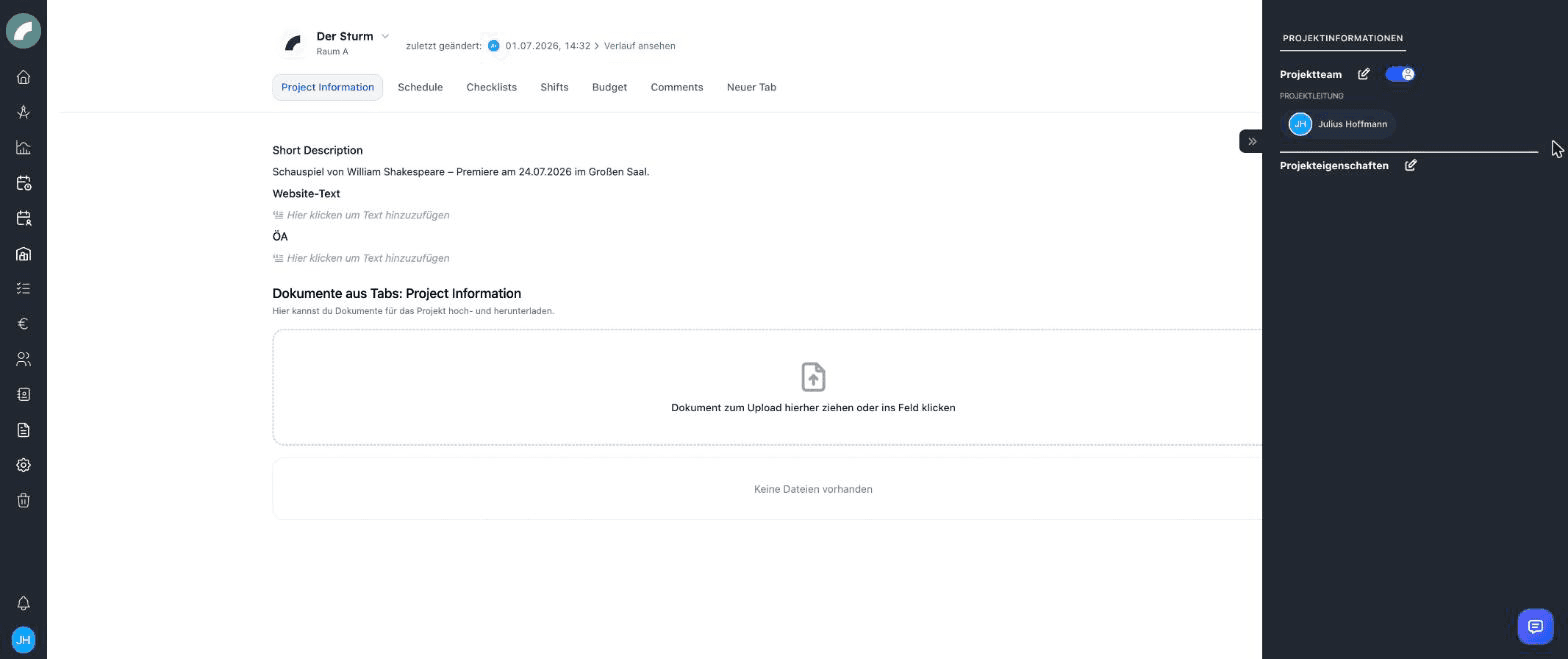
Header
At the top are the project name and status, plus the project actions:
- Print — opens the selection of print layouts and generates a project PDF.
- Duplicate — copies the project as the basis for a new one.
- Edit — the base data (name, properties, status …).
- History — the project's change log.
- Delete — moves the project to the trash.
- Copy link — copies the direct address of the open project. The recipient still needs the appropriate access rights.
Project groups also provide Add projects and Create project in this group. A member project links back to its parent group from the header.
Orientation and project period
The top tabs switch between major work areas. An optional sidebar keeps frequently used details such as the team, properties, shift contacts, and budget information available independently of the current tab. Collapsible folders help structure longer pages.
The project period is normally calculated from the earliest and latest events whose event type is marked as relevant. It drives the project mode of the calendar and duty roster and updates when relevant events change.
The default tabs
The tab names come from the configuration (named in English as shipped, and renamable at any time):
| Tab | Contents |
|---|---|
| Project Information | Short description, website text, PR text and the project documents. In the sidebar: project team & properties, shift information, budget information. |
| Schedule | The bulk event creation: create and edit many of the project's events in one table (see Calendar). |
| Checklists | The project's checklists (To-do-Listen). |
| Shifts | The shift tab — shift planning within the project period (see Shift Plan). |
| Budget | The project's budget table. |
| Comments | Discussions about the project. |
Each tab can additionally have a configured sidebar with its own sub-tabs — in the default setup project information (team & properties), shift information and budget information; it is expanded and collapsed via the arrow at the right edge.
Project team
The team component lists everyone involved. Per person, the project grants:
- Write access — may edit project contents,
- Delete right — may delete the project,
- Budget access — may see and edit the budget table,
- Project roles — freely definable roles (e.g. direction, production management), managed in the project settings. Each user can have default project roles that are preselected when they are added.
Project management is kept separately: only users with the global permission Be project manager can be entered.
Depending on the setup, users and departments can be found while editing the team. Project permissions complement global permissions and apply only here, allowing targeted write or budget access for one production.
Access and project roles are different
A project role describes a person's responsibility. Write, delete, and budget access determine what that person can do in Artwork.
Project calendar, schedule, and shifts
The project calendar shows only this project's events. The schedule table maintains many events quickly: add rows, sort and filter, adjust column widths, and edit or delete several entries together. Room, event type, name, dates, times, all-day status, repetition, description, and timelines can all be handled there.
The shift tab opens the duty roster restricted to the project period and its events. Project-specific shift contacts, a general shift description, and the event types relevant to shift planning tell planners what to include and whom to contact.
Via the shift tab's display settings, events and shifts from other projects can additionally be shown — handy for spotting conflicts with other productions while planning. The display setting Show project assignments adds an overview of the people assigned to the project and project wishes, including the avatars in the day bars.
Checklists
Checklists belong to a project (or stand on their own) and contain tasks with assignees and a done status:
- Lists can be private — only you see them.
- Tasks can be assigned to users, sorted and moved between lists; "complete all / reset all" is available per list.
- Checklist templates (system settings) fill in recurring workflows with one click.
- Depending on the construction kit, a tab shows one specific list or all lists of the project.
Comments
The comment component collects discussions with timestamp and author — as a tab for all comments, or as an individual component that only shows the comments of its tab.
Documents & contracts
- Project documents — files on the project, as a per-tab component or as a complete list. Depending on the type, they can be previewed, downloaded, printed, renamed, or replaced.
- Contracts — contracts have their own metadata (contract partner, contract type, amounts) and are collected project-wide under Contracts; reusable contract modules are available as downloads. Access is controlled by dedicated permissions (e.g. view/edit/upload contracts).
- Document requests — missing files can be requested from users or departments and tracked with a deadline. Uploaded files remain linked to the request and, where applicable, the resulting contract.
Additional project components
| Component | Everyday use |
|---|---|
| Links and link lists | Keep production folders, ticketing, press, streaming, and approvals with the project. |
| Artist residencies | Record stays, travel dates, and custom residency details, then export them. |
| Material issue | Track inventory articles, special items, rooms, periods, notes, and attachments. |
| BI figures | Record and evaluate audiences, revenue, occupancy, production attributes, and time efforts. |
The BI component combines project and event data with manually maintained figures. Artwork derives KPIs, highlights missing information, and offers room and event filters. Snapshots compare reporting states with current figures; reusable column selections tailor Excel exports.
Project history
Via the header you reach the history: who changed what on the project and when — from base data to events to the team list.
The history is useful for handovers because it shows when and by whom a value changed, not only its current state. Shifts and budgets provide additional specialist histories.