The Duty Roster
Navigate the main shift planning view and tailor it to your workflow
Open the duty roster via Shift plan → Duty rosters in the sidebar. The page has two halves:
- Top — the planning grid: rooms as rows, days as columns (grouped into calendar weeks, "KW"). Each cell shows the events taking place in that room on that day, with their shifts, plus standalone shifts.
- Bottom — the workforce panel: all workers who can take shifts, grouped by craft, with their weekly hour balance. This is where you drag people from when assigning staff.
The divider between the two halves can be dragged to resize, and the panel can be collapsed entirely when you need the full screen for the grid.
The function bar

From left to right:
| Control | What it does |
|---|---|
| Date range | Two date fields defining the visible period — up to 6 months at once. |
| Today / Current week / Current month | One-click jumps to common ranges. |
| Arrow navigation | Step backward/forward. The calendar icon between the arrows opens the date picker, where a mode is chosen at the top: day, week, month or free selection. In month mode paging always selects the complete next month, in week mode the next calendar week. |
| Project search (compass toggle) | Locks the visible period to a project: search for a project or artist and the roster shows exactly its time span, with a link back to the project's shift tab. |
| Daily view (calendar switch) | Switches to the daily view. |
| Edit (pencil switch) | Multi-edit mode: select several room/day cells and create or delete shifts in bulk. |
| Display settings (gear) | Opens the display settings. |
| Filter (funnel) | Opens the filter panel. |
| Commit (calendar check) | Commits the plan — see Committing. |
| History (clock) | The shift history — see below. |
| Export (file) | PDF/Excel exports — see Exports. |
| Fullscreen (arrows) | Toggles fullscreen mode. |
| Calendar subscription (calendar star) | Personal roster as ICS feed — see Exports. |
Filters
The filter panel narrows the grid down to what you're working on. Filters can be saved ("Gespeicherte Filter") and re-applied with one click; active filters appear as removable tags.
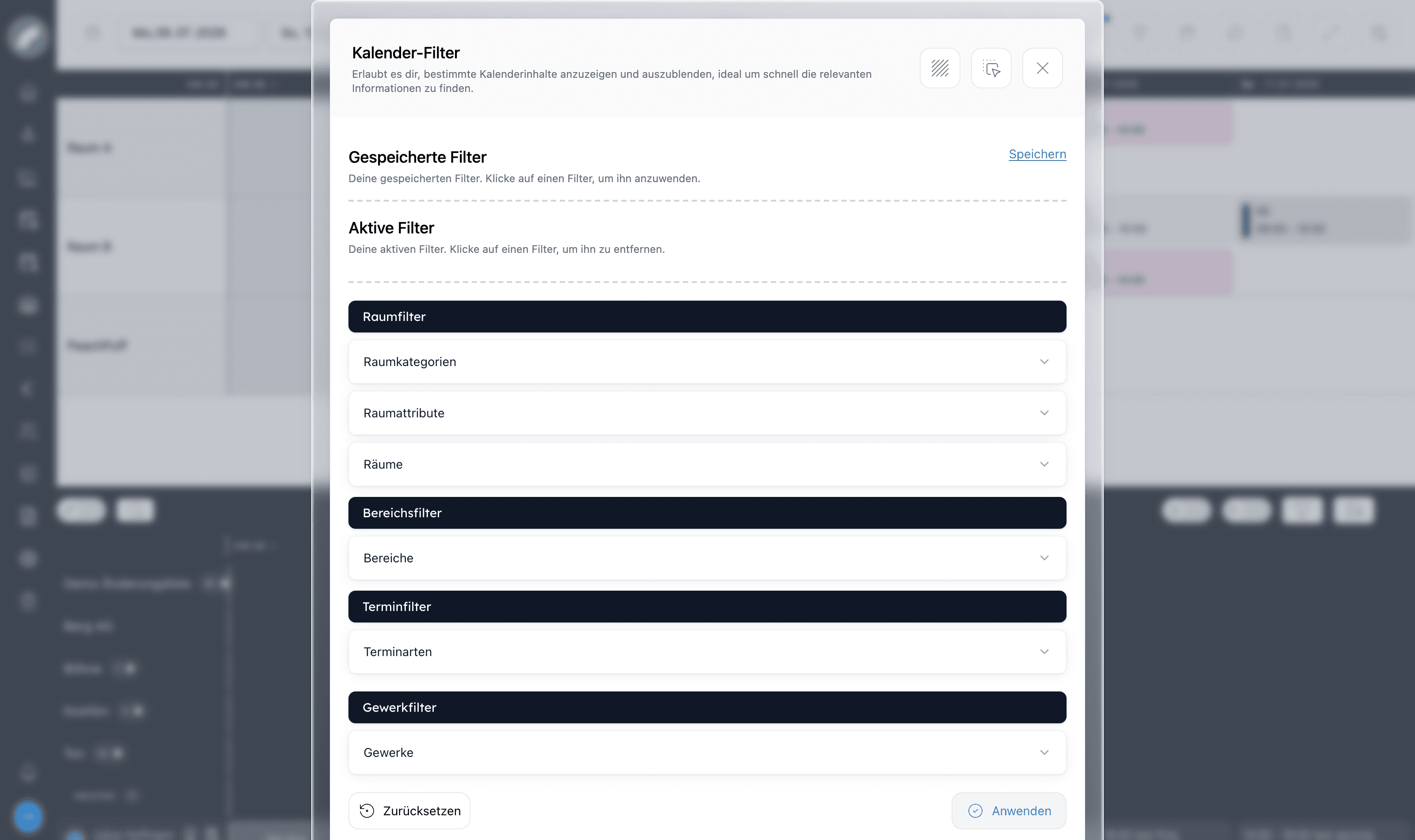
You can filter by:
- Rooms — room categories, room attributes, individual rooms
- Areas — the building areas rooms belong to
- Event types — e.g. only performances, only setup times
- Crafts — only show shifts of selected crafts
Display settings
The gear icon opens the calendar settings, which are personal to you and persist between sessions:
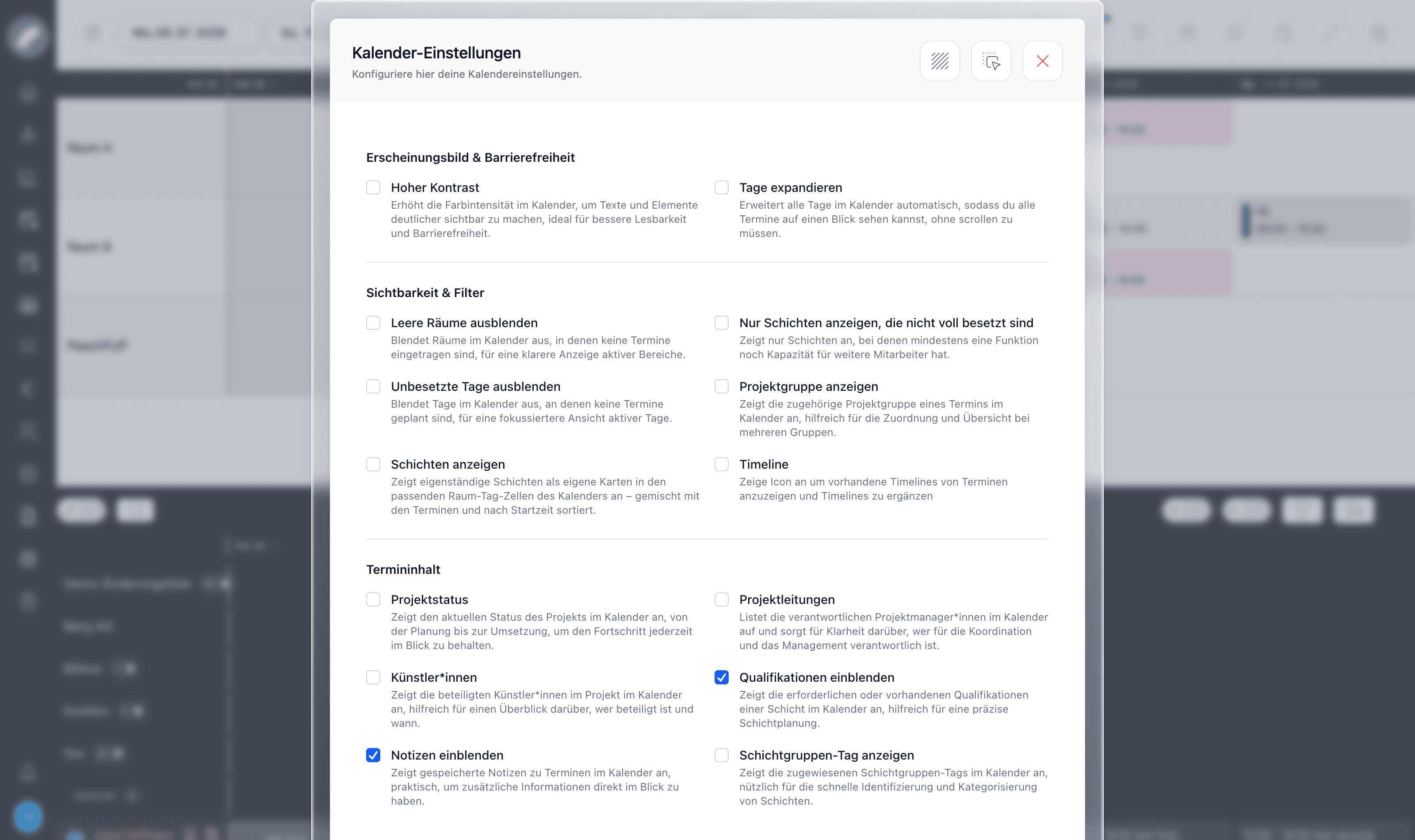
The most useful options for shift planning:
- Hoher Kontrast — stronger colors for better readability
- Tage expandieren — expand all day cells so nothing is cut off
- Leere Räume / Unbesetzte Tage ausblenden — hide rooms or days without entries to focus the view
- Nur Schichten anzeigen, die nicht voll besetzt sind — only show shifts that still need staff, ideal at the end of planning
- Schichten anzeigen — show standalone shifts as their own cards in the room/day cells
- Qualifikationen einblenden — show required/filled qualifications on shift cards
- Notizen einblenden — show shift notes in the grid
If the day remarks column is activated for your instance, the day notes from the calendar are also shown in the duty roster. Room names and the date row move along while scrolling, so they stay visible even with tall, filled cells.
The workforce panel
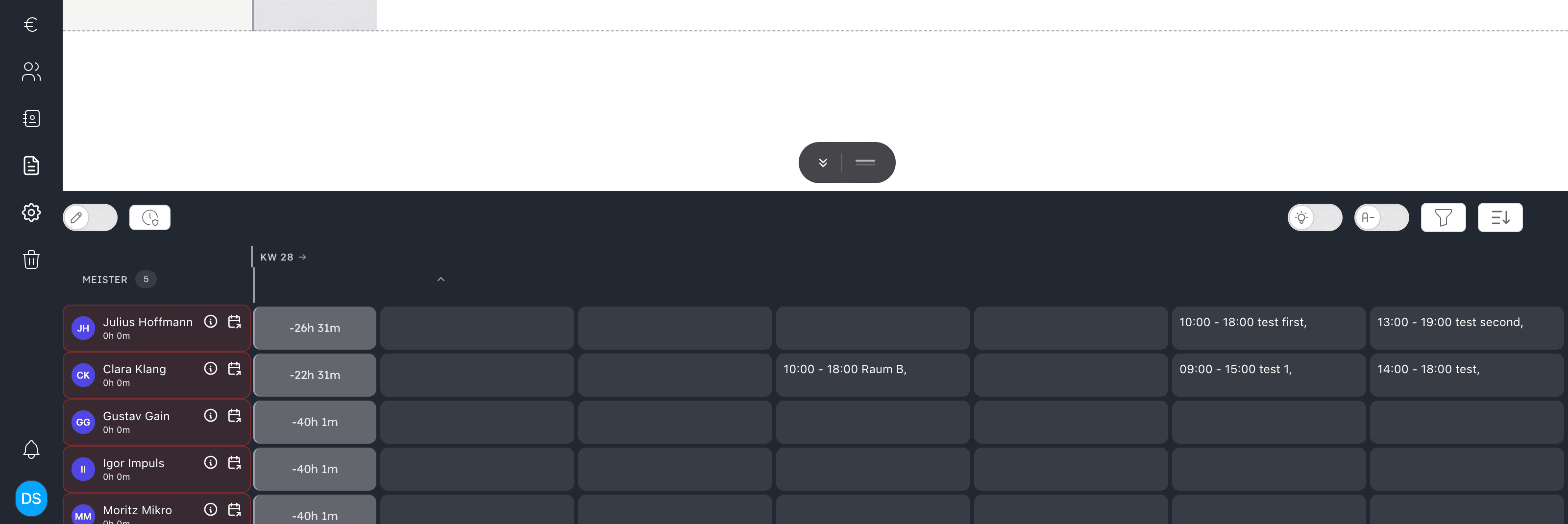
Each craft (here Meister inside the craft Ton) expands into its workers. Per worker row you see:
- Avatar and name — with an info button for personal shift data and a link to their individual shift plan
- Hour balance — the grey chip shows the week's planned time against the
contracted hours (e.g.
-22h 31mmeans 22.5 hours still unplanned); green and red indicate over- and under-planning - Day cells — each assignment appears as a chip (e.g.
10:00 – 18:00 Raum B), so you always see who is already booked and when
The panel has its own controls: an edit switch (multi-edit on worker cells), day services, a highlight switch (click a shift to highlight its assigned workers), alphabetical sorting, a craft filter and a sort menu (by name or by internal/external).
Project assignments and project wishes
People can be assigned to a project directly in the duty roster — for individual days or the entire project period — before any concrete shifts exist. Personnel planning can start earlier, and everyone sees who is earmarked for which production.
Binding assignment (for planners): In a person's day window (click the day cell) you'll find the Projects section. Via Assign project you bindingly assign the person to a project — for individual days or the whole project period. A full-period assignment "moves along": if the project shifts in time, the assignment adapts automatically. The assignment appears as a coloured stripe in the day cell; via multi-editing, several people and days can be assigned in one step.
If an assigned person is placed into a shift of the same project, the shift replaces the assignment on that day — removing the shift brings the assignment back. When staffing shifts, assigned people are suggested with priority. Assignments also appear in the personal operational plan, in the project's shift tab (display setting Show project assignments) and in the duty roster PDF.
Project wishes (for employees): In their own operational plan there is an Enter wish button — with it a person enters themselves, non-bindingly, as a wish for a project, likewise for individual days or the whole period. Planners see wishes as a striped stripe in the day cell and when staffing shifts of the project; one click turns a wish into a binding assignment. No wish is possible on days with a registered absence.
Daily view
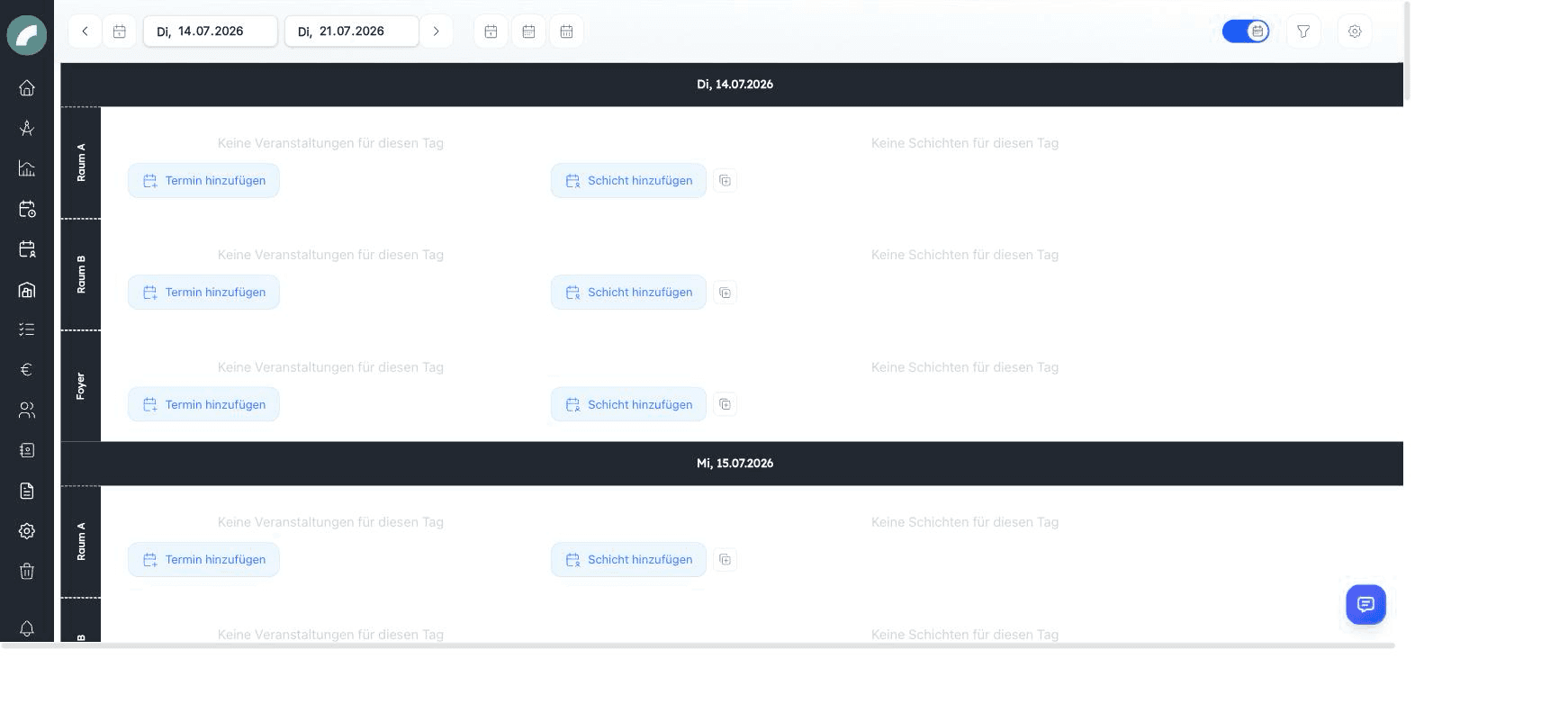
The Tagesansicht switch turns the grid into a day-by-day list — each day becomes a section with one row per room, side by side: events on the left, shifts on the right. It is limited to 7 days and is ideal for the detailed planning of a single day or for use on stage during the day.
List view
Shift plan → Shift plan list view shows all shifts of a period as a flat, day-grouped list — the fastest way to review staffing status at a glance:
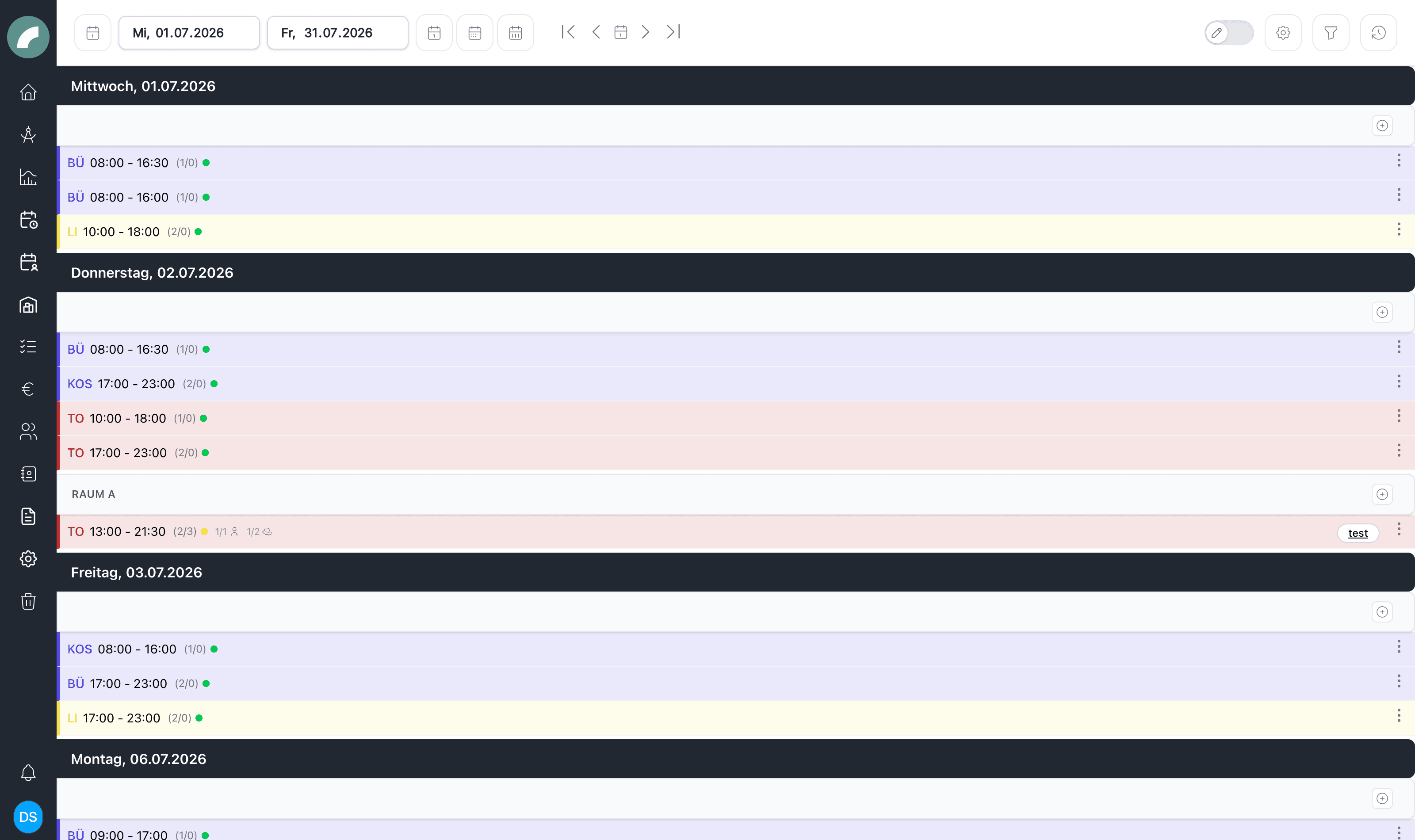
Each row shows the craft abbreviation, the time, the occupancy (2/3 = two of
three positions filled) with a status dot — green fully staffed, yellow
partial, red empty — and the per-qualification breakdown. A multi-select mode
lets you duplicate or delete several shifts at once, and "Unbesetzte Tage
ausblenden" hides days without shifts.
Shift history
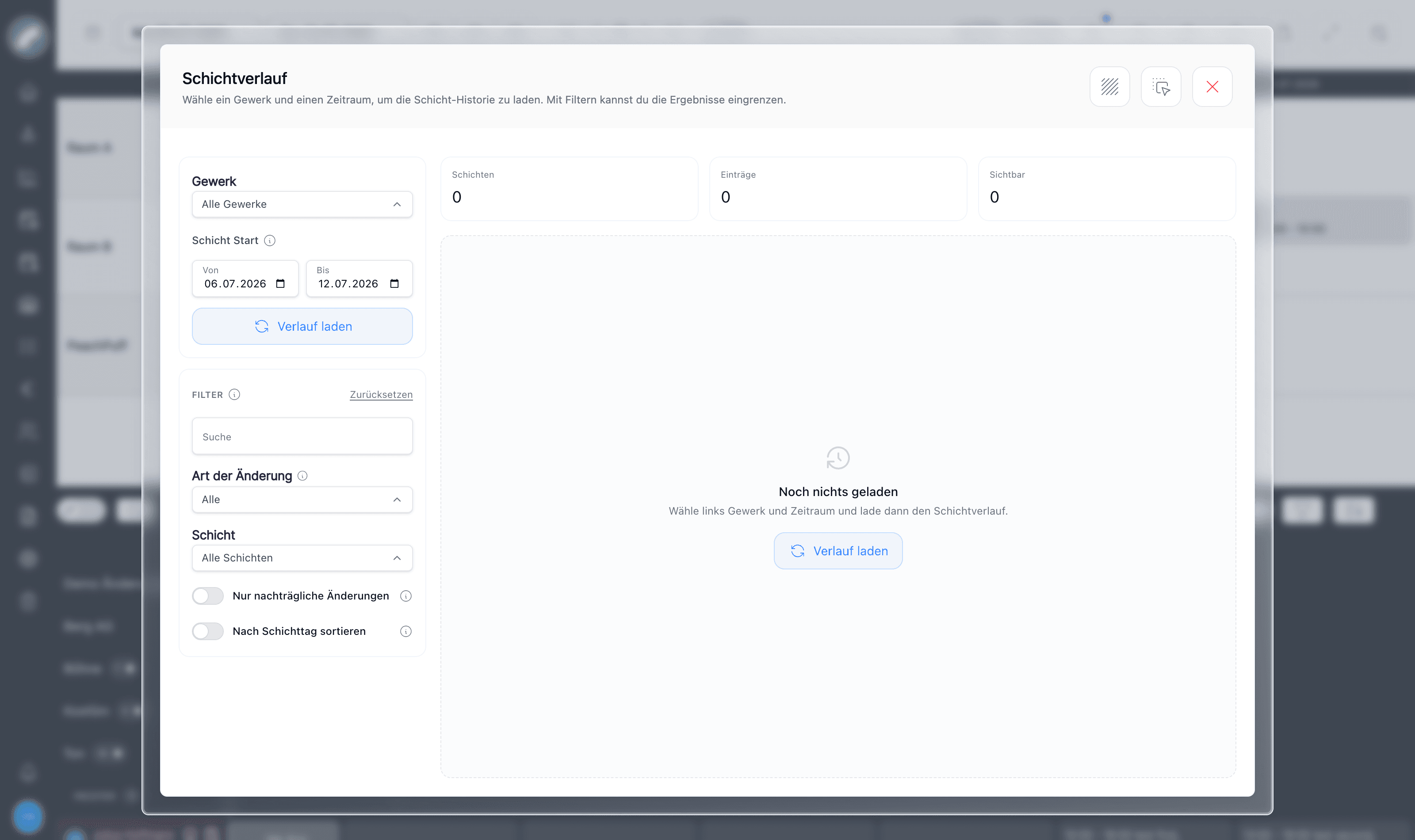
The History button opens the Schichtverlauf: a filterable log of every change made to shifts in a chosen craft and period — who created, edited, staffed or deleted what, and when. Especially useful after a plan was committed, since late changes must be accounted for.
My operational plan
Every worker has a personal counterpart to the duty roster: Shift plan → My Operational plan lists only your own shifts. Workers who cannot see the full duty roster still see their own assignments here.
From their own operational plan, workers can also enter project wishes and — when Shift confirmation by employees is active — accept committed shifts with a check mark or decline them with an X (see Committing & Approval).
One plan, several views
Grid, daily, and list view are not separate rosters. Changes immediately appear in all views, in the project, and in personal operational plans.
Project mode and detailed person view
Project mode adopts the calculated project period, shows its events and shifts, and provides a link back to the project. It is more than a visual filter and keeps parallel productions out of the current planning task.
Clicking a person's day cell opens their shifts, individual work times, breaks, day comments, availability, vacation, rule violations, and granted compensation days. In the new Projects section of that day window the person can also be assigned to a project. Individual times add work not attached to a shift, such as office work, home office, or training, and can be created as a recurring series for several people.
The staff information window contains seasonal contract, work-time, vacation, and overtime figures where configured. Authorised users can record overtime payouts while retaining their history.
List settings can show or hide fully staffed and unstaffed shifts, notes, qualifications, and grouping by shift group. Show in shift plan jumps from a list row to the matching grid position.
Personal plans distinguish committed from draft assignments. Whether draft shifts appear in subscriptions is controlled centrally in shift settings; workers can request a work-time correction without editing the roster.