Committing & Approval
Making duty rosters binding, the roster approval workflow in detail, the change list and notifications
While a plan is in draft, shifts can be changed freely — staff are not notified yet. Committing ("festschreiben") makes a period binding:
- committed shifts show a lock icon and record who committed them,
- everyone assigned is notified about their final duty roster,
- later changes to committed shifts are collected in a change list so nothing goes unnoticed.
Committing a week
The calendar-check button in the function bar opens the commit dialog (permission Commit duty rosters). A commit always targets a combination of calendar week, year and craft — and several crafts can be selected and requested at once. Sound can be final while lighting is still in progress:
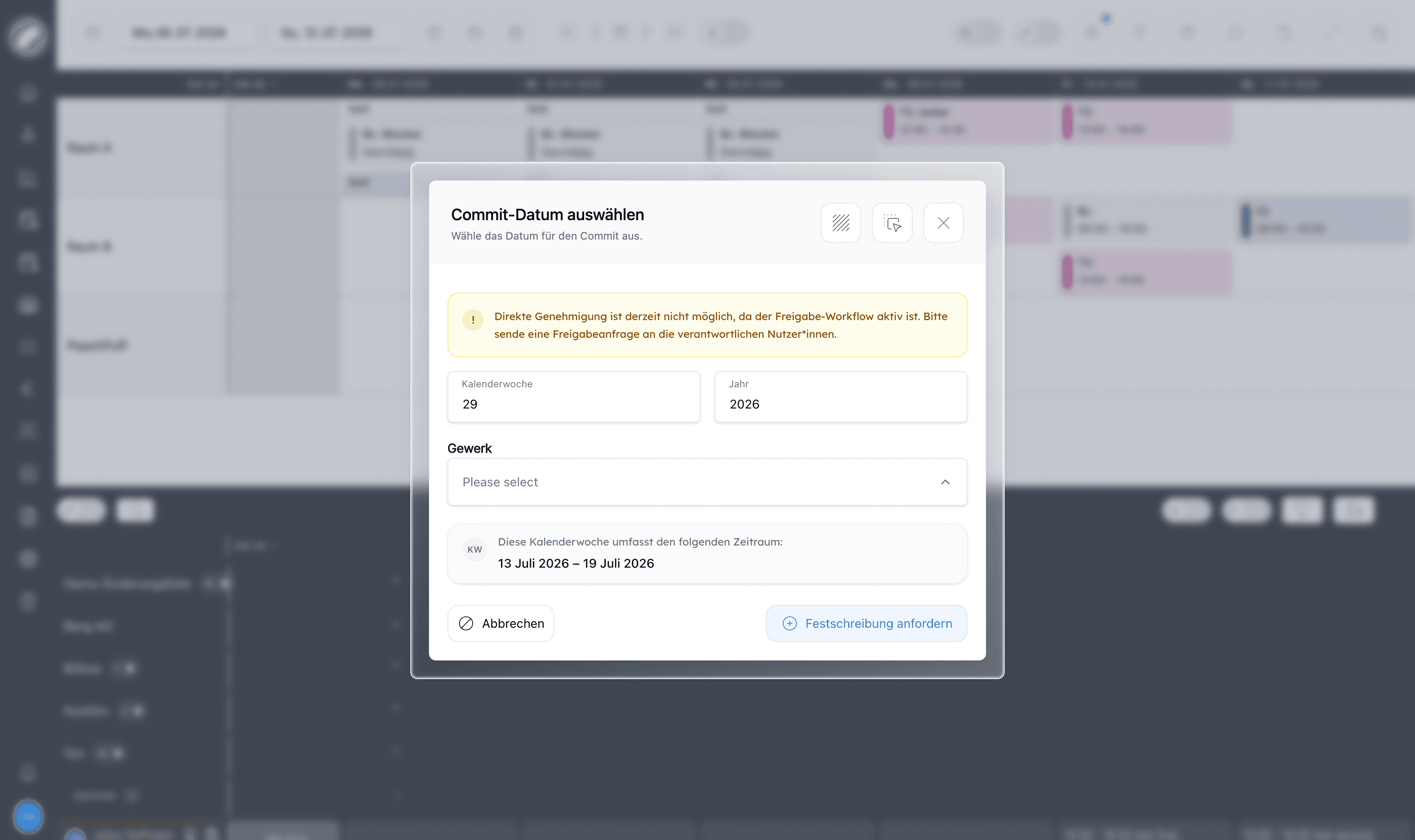
- Without the approval workflow the button reads "Lock all shifts" — the craft's shifts in that week are committed immediately and staff are notified.
- With the workflow active it becomes "Request a commitment" (shown in the screenshot, along with a notice that direct approval is not possible) — see below.
Individual shifts can also be committed or released again ("revoke commitment") directly from their card.
In the grid, each calendar week's status tile shows the state per craft:
| Status | Colour | Meaning |
|---|---|---|
| Requested | blue | A commit request has been submitted and awaits approval |
| Committed | green | The week is final for this craft |
| Changed after commit – acknowledgement pending | yellow | There were subsequent changes nobody has acknowledged yet |
The roster approval workflow
Venues with a four-eyes principle enable the Duty roster release workflow toggle in the shift settings and name the users who may approve requests there. Approvers are not a separate permission but exactly this list (admins always may). Only with the workflow active do the three workflow pages appear in the Shift plan menu.
Planners request instead of committing. "Request a commitment" submits the selected calendar week and craft as a request. All still-free shifts of that craft in that week are attached to the request and are now "in the workflow". If an open request already exists for the same week, new shifts are added to it automatically instead of creating a second one. While a request is still open, planners can withdraw it — the shifts become freely editable again.
Approvers review. The named users are notified and find all requests under Shift plan → Shift plan Review requests — grouped by craft, with open requests plus those recently approved/rejected (older ones can be loaded). The detail view shows exactly which shifts, assignments and changes are included — including rooms and individual shift notes. Requests can be browsed back and forth directly, and freelance employees can be shown or hidden and sorted in the review.
Approve or reject.
- Approve commits all shifts of the request — optionally with a comment that goes back to the planners. Staff are notified just as with a direct commit.
- Reject requires a reason — global for the whole request, plus per day or even per shift/person. Important: on rejection the request's shifts are rolled back to their state before editing (times, assignments, craft, room …) and the reasons are stored for the planners. Planning is notified, reworks the plan and submits a new request.
Planners keep track under Shift plan → Requested duty rosters: a read-only view of their own requests (and those for their crafts) with status (open / approved / rejected) and the stored reasons.
After committing
- Change list — changes to committed shifts (times, assignments, deletions) are collected under Shift plan → Shift plan Change list. Approvers acknowledge each change individually or all filtered ones at once; until then the yellow week status tile marks the week as "changed after commit". Filters: all/open/acknowledged changes, craft, person search, internal/external. The full technical trail also lives in the shift history.
- Work time change requests — staff can request corrections to their working times; planners process them under Shift plan → Work time change requests.
Shift confirmation by employees
When the toggle Shift confirmation by employees is active in the shift settings, scheduled people can accept their committed shifts in their own operational plan with a check mark or decline them with an X. The response is visible in the duty roster directly at the shift time in the cell — so planners see at a glance who has confirmed their duty.
Confirming is also possible on the person's behalf by planners; the person's availability status for that day is then set automatically to match.
Notifications
The "shift planning" notification group keeps everyone up to date. The most important triggers:
| Recipient | Notified when … |
|---|---|
| Staff member | they are assigned to or removed from a shift (with qualification) |
| Staff member | their duty roster is committed |
| Planner | a shift collides with someone's availability or vacation |
| Planner | a working-time rule is violated |
| Planner | a shift is not fully staffed n days before it starts (reminder configurable per craft) |
| Approver | a new commit request awaits review |
| Planner | their request was approved or rejected (incl. comment or reason) |
Frequency and channels are configured in each person's personal notification settings.
Final check and later changes
Before committing, filter for understaffed shifts, review open qualifications, rule violations, and absences, and confirm the correct week, year, and craft. Only that professional area is committed—not automatically the entire visible roster.
An open approval request marks a clear submitted state and makes parallel changes traceable. If corrections are needed, it is withdrawn or rejected and then submitted again. Additional shifts for the same week and craft can be attached to the existing request.
Committed shifts may still need operational changes because of sickness, time changes, or replacement staff. Artwork marks, notifies, and records these changes so the plan stays usable without losing the approved history. The commitment can also be removed from an individual shift when it truly needs to return to normal editing.