Assigning Staff
Fill shifts by drag & drop, handle qualifications, conflicts and overbooking
Staffing happens by drag & drop: grab a worker from the workforce panel at the bottom and drop them onto a shift card in the grid.
Reading a shift card
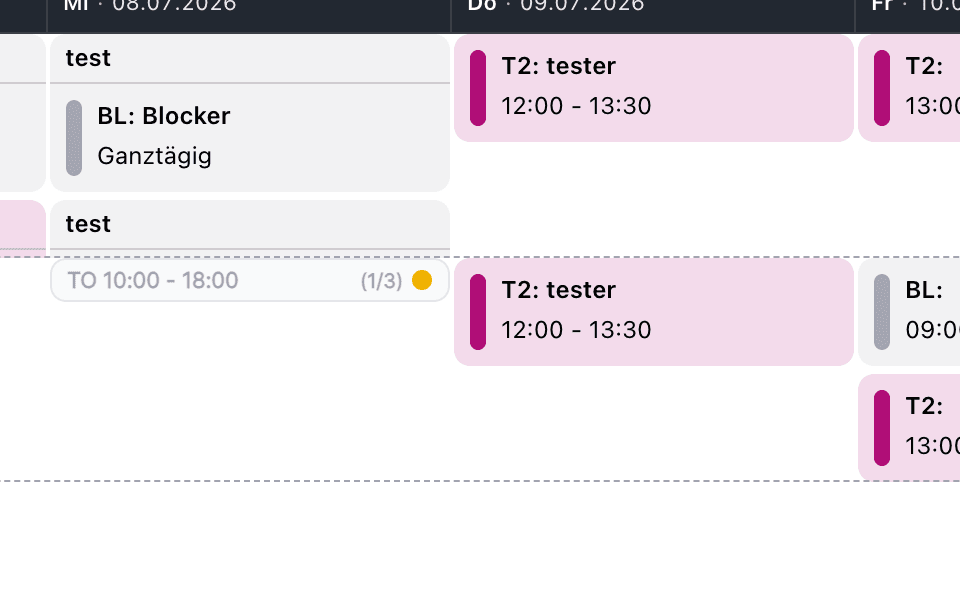
A standalone shift card shows the craft abbreviation, the time and the
occupancy — here TO 10:00 – 18:00 (1/3): one of three required positions is
filled. The status dot summarizes staffing at a glance:
| Dot | Meaning |
|---|---|
| 🔴 red | Nobody assigned yet |
| 🟡 yellow | Partially staffed |
| 🟢 green | Fully staffed |
| 🟠 amber | Overbooked |
With Qualifikationen einblenden enabled, the card additionally lists each
qualification with its own filled/required counter, so you see exactly which
role is still open.
Who can be assigned
Three types of workers appear in the workforce panel — internal employees, freelancers (dashed border) and service providers. To be assignable to a shift, a worker must:
- be marked as "may be assigned to shifts" in their profile,
- be assigned to the shift's craft (or the craft must be universally applicable),
- hold a qualification that the shift still needs.
And you, the planner, must be allowed to schedule this worker type for this craft — each craft defines who may assign employees, freelancers and service providers (see Shift Settings).
People with a project assignment or project wish for the shift's project are suggested at the very top with priority and marked accordingly.
Drag & drop
Drag the worker onto the shift card. If exactly one qualification slot is open, the worker is assigned immediately. If several of the worker's qualifications are open, Artwork asks which role to fill:
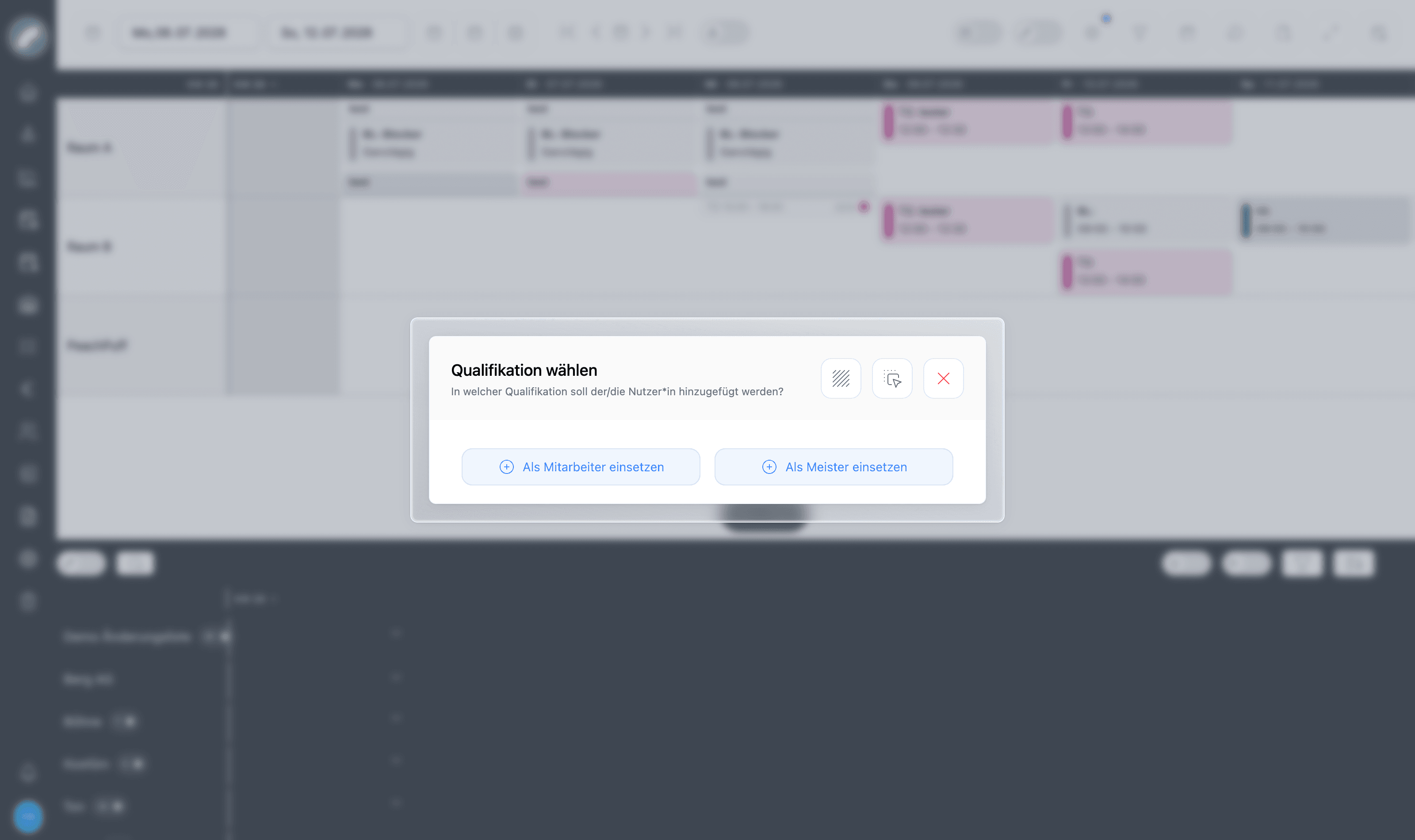
After the assignment the card updates its counters, the worker's day cell in the workforce panel shows the new shift, and their weekly hour balance adjusts. For repeat shifts you additionally choose whether the person takes only this shift or all subsequent shifts of the series.
Why some drops are rejected
A drop is refused with a message when the worker is already assigned to an overlapping shift, doesn't hold a function in this craft, or no matching position is open. This keeps the plan consistent — check the worker's day row or the shift's qualification counters to see what's blocking.
Conflicts and warnings
Artwork continuously checks assignments against:
- Availability — workers maintain availabilities and vacations; assigning someone who is unavailable or on vacation flags a conflict on the shift and notifies the affected planner.
- Overlapping shifts — collisions with the worker's other shifts are detected across rooms and projects.
- Working-time rules — configurable legal rules (rest periods between shifts, maximum working hours, minimum breaks) produce violations that planners can review, resolve or deliberately ignore with a reason. Rules and open violations are managed in Shift Settings. Compensation days ("Ausgleichstage") can be granted from there when overtime needs to be paid back in time off.
Overbooking
If the instance setting allow shift overbooking is enabled, a planner can assign more people than required — the card then shows the amber overbooked state. Otherwise, full shifts reject further drops.
Highlight mode
The lightbulb switch in the workforce panel activates highlight mode: click a shift and all workers assigned to it light up in the panel (and vice versa). Useful in large plans to quickly see who belongs to what.
Assigned people can be removed from the shift or from their day cell. The history records who made each change.
Warnings, availability, and other work time
Hard restrictions and warnings are different. A missing qualification or unavailable position blocks the assignment. A work-time rule may instead create a reviewable violation that an authorised planner resolves, ignores with a reason, or handles through compensation time.
Day cells show availability, limited availability, vacation, and other absences. When a day is changed to unavailable, Artwork can show and remove existing shifts and individual times after confirmation.
For committed shifts, reporting a person sick (or any status other than Available) no longer removes the shift automatically. Instead, Artwork makes it clearly visible: a warning triangle at the top of the shift plan plus a highlight in the workforce panel and in the project's shift tab — so the shift can be consciously restaffed.
- Individual times have a title, start, end, and break or may be all-day; recurring series can represent office work or training.
- Day services are all-day organisational markers such as standby duty and do not have their own start and end time.
Compact mode, craft filters, sorting, and collapsed qualification groups reduce large workforce panels to the people currently needed.