Overview
What the shift plan is and how its pieces fit together
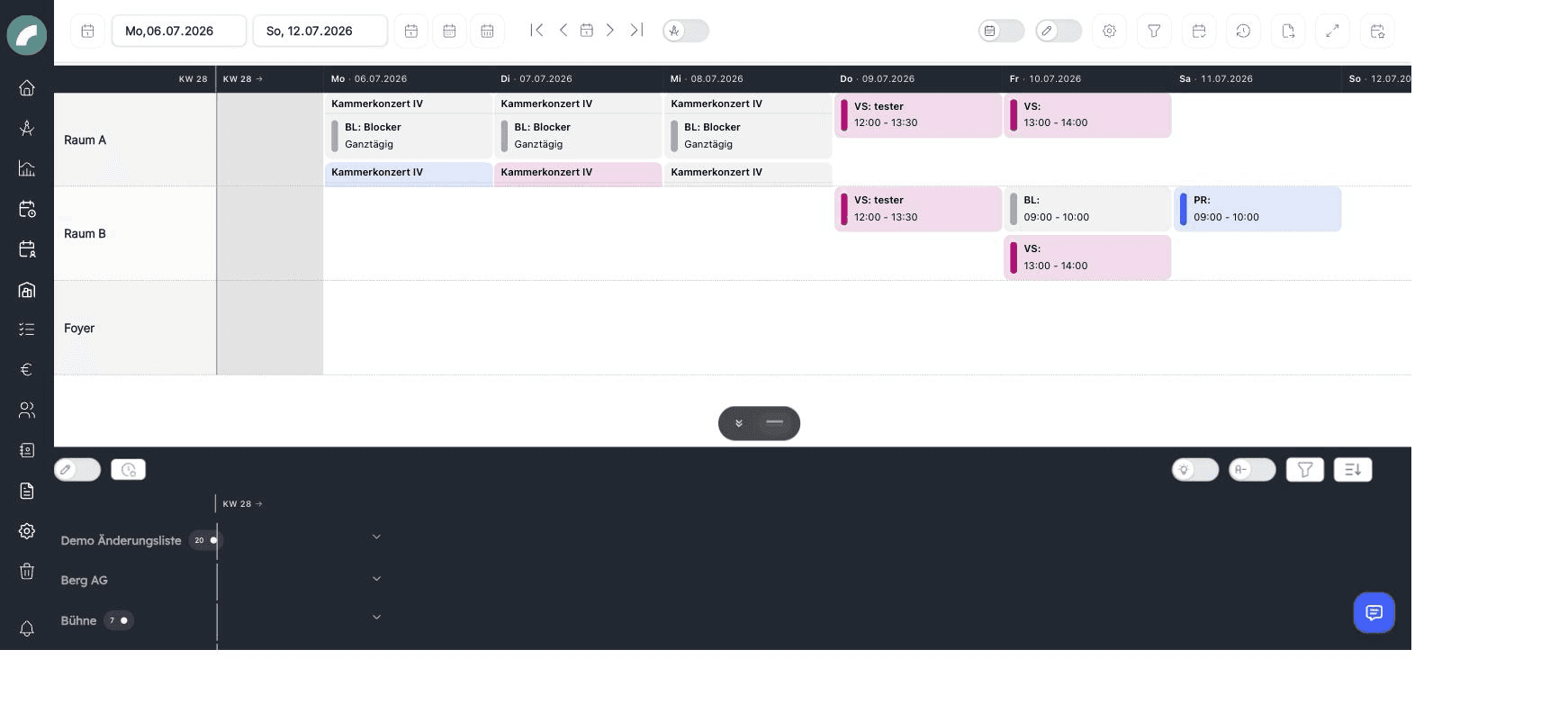
The shift plan (German UI: Dienstplan / Schichtplan) is Artwork's staff scheduling module. Planners define shifts — time blocks that need a certain number of people with certain qualifications — and fill them with workers by drag & drop. Once a week is fully planned, the plan is committed ("festgeschrieben"): shifts become binding and the assigned staff are notified.
Core concepts
| Concept | German UI | What it means |
|---|---|---|
| Shift | Schicht | A time block on a specific day with start/end time, a break, a craft and a required headcount. Shifts can stand alone (tied to a room and/or project) or belong to an event. |
| Craft | Gewerk | A trade or department (e.g. Ton, Licht, Bühne, Kostüm). Every shift belongs to exactly one craft, and workers can only be scheduled into crafts they are assigned to. |
| Qualification | Qualifikation | A role within a shift (e.g. Meister, Mitarbeiter). A shift defines how many people of each qualification it needs. |
| Worker | Mitarbeiter*in | Anyone who can take shifts: internal employees, freelancers and external service providers. |
| Commit | Festschreiben | Locking a planned time range. Committed shifts show a lock icon, changes are tracked, and workers are notified of their final roster. |
How shifts relate to events and projects
Shifts are planned in the context of your venue:
- Standalone shifts are created directly in the duty roster for a room and/or a project — typical for services that don't hang on a single event.
- Event shifts are attached to a calendar event (a performance, rehearsal or setup) and appear inside that event's card. They can also be planned from the project's shift tab.
The "Shift plan" menu
The sidebar module is labelled Shift plan (German: Schichtplan). Its entries:
| Menu entry | Contents |
|---|---|
| Duty rosters | The main planning grid (The Duty Roster) |
| Shift plan list view | All shifts as a flat list |
| My Operational plan | Each worker's personal roster |
| Work time change requests | Staff correction requests for recorded working times |
| Shift plan Review requests | Review commit requests — only with the approval workflow active, approvers only |
| Shift plan Change list | Acknowledge post-commit changes — only with the workflow active |
| Requested duty rosters | Planners' own commit requests and their status — only with the workflow active |
| Compensation days overview | Dashboard of granted and open compensation days |
The pages of this section
The Duty Roster
The main planning view: navigation, filters, display options, daily and list views.
Creating Shifts
Create and edit shifts, define required staff, use templates and time presets.
Assigning Staff
Drag & drop workers into shifts, qualifications, conflicts and overbooking.
Personal Roster & Working Time
Own duties, individual times, availability, correction requests, and overtime.
Rules, Violations & Compensation
Review working-time warnings, resolve violations, and track time off in lieu.
Committing & Approval
Lock the plan, the roster approval workflow, the change list.
Exports & Calendar Feed
PDF and Excel exports, personal calendar subscription.
Shift Settings
Configure crafts, qualifications, contracts, time presets, templates, rules, and the approval workflow.
Permissions
What you can do in the shift plan depends on your permissions (names as shown in user management, German originals in brackets):
| Permission | Allows |
|---|---|
| View shift plan (Schichtplan einsehen) | Open the duty rosters, list view and exports |
| Shift planner (Schichtplaner) | Create, edit and delete shifts; assign and remove workers |
| Commit duty rosters (Dienstpläne festschreiben) | Commit rosters, or request approval when the workflow is active |
| See own operational plan (Mein Einsatzplan sehen) | Open the personal roster |
| Subscribe roster calendar (Dienstplan-Kalender abonnieren) | Subscribe to the personal roster as an ICS feed |
| View and edit shift settings (Schichteinstellungen einsehen und bearbeiten) | Manage the shift settings |
| Manage availabilities manually (Verfügbarkeiten manuell verwalten) | Maintain other people's availabilities |
| See staff info data (Personal-Infodaten im Dienstplan sehen) | Open the per-person KPI window |
| See hour accounts (Stundenkonten im Dienstplan sehen) | See everyone's working-time accounts and weekly hours |
| Pay out overtime (Überstunden auszahlen) | Manually pay out overtime |
Approvers are not a permission
Who may approve commit requests is not controlled by a permission but by the user list of the duty roster release workflow in the shift settings.
Additionally, each craft defines who may schedule which type of worker into its shifts — see Shift Settings.
From draft to final roster
The roster combines three perspectives: planners work by event, room, and craft in the upper grid; the workforce panel shows each person's workload; and workers see only their own assignments in the operational plan. All views use the same data.
Shifts may belong to an event, only to a project or room, or stand on their own. This also covers office time, standby duties, and work that is not tied to one calendar event.