Event settings
Configure event types, statuses, properties, holidays, defaults, and timeline presets
The functional event configuration lives under System → Events (permission Define system settings for events). The page is organized into tabs — Event types, Standard values, Holidays & school holidays, Event statuses, Event properties and Timeline presets:
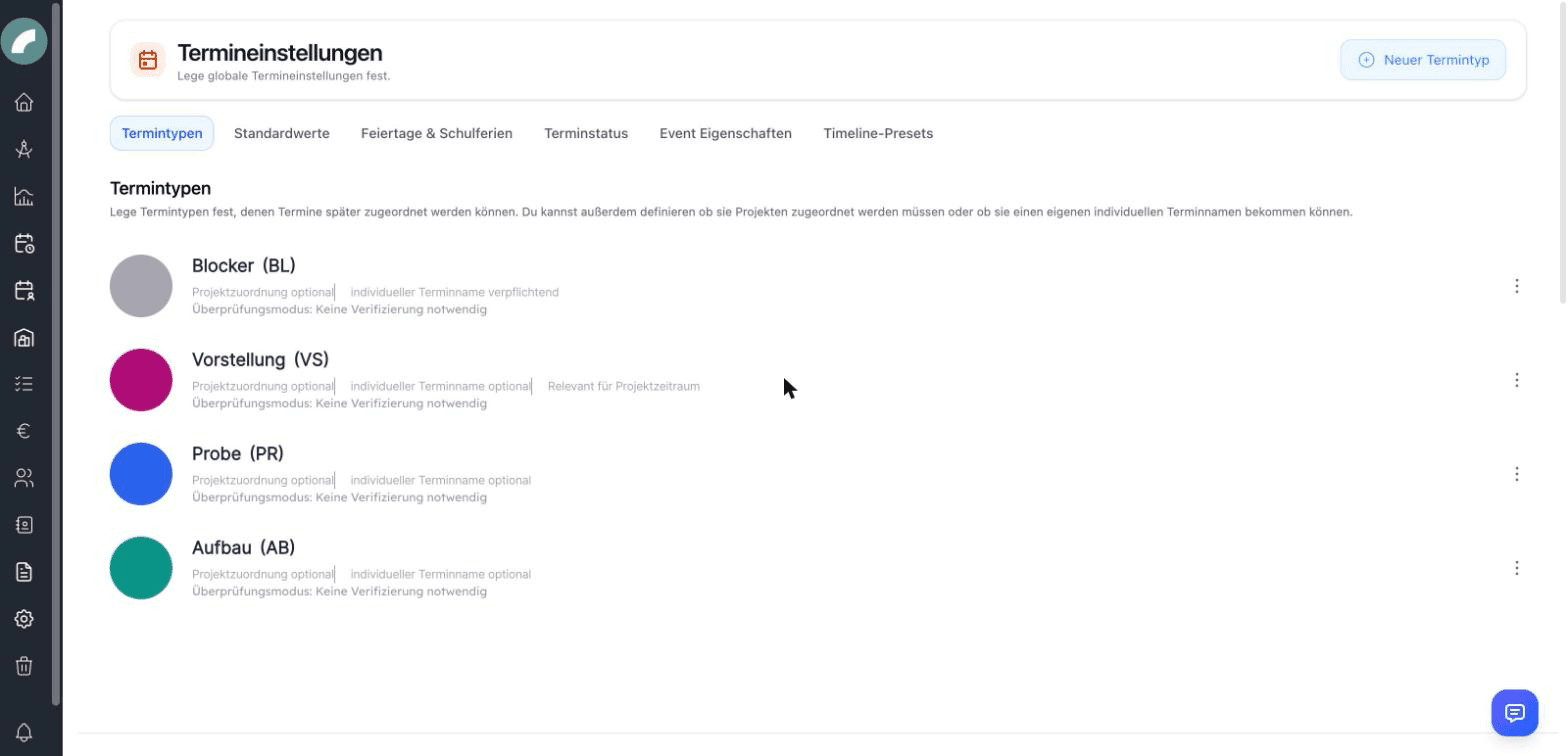
Settings map
| Area | Effect for users |
|---|---|
| Event types | Colour, required fields, project period, and content verification |
| Standard values | Initial duration, start time, and all-day state for new events; activation of the admission field |
| Holidays & school holidays | Calendar markers and basis for special working-time cases |
| Event statuses | Additional processing state and optional calendar colouring |
| Event properties | Reusable characteristics, icons, and filters |
| Timeline presets | Importable sequences within an event |
Event types
Event types categorize every event. Configurable per type:
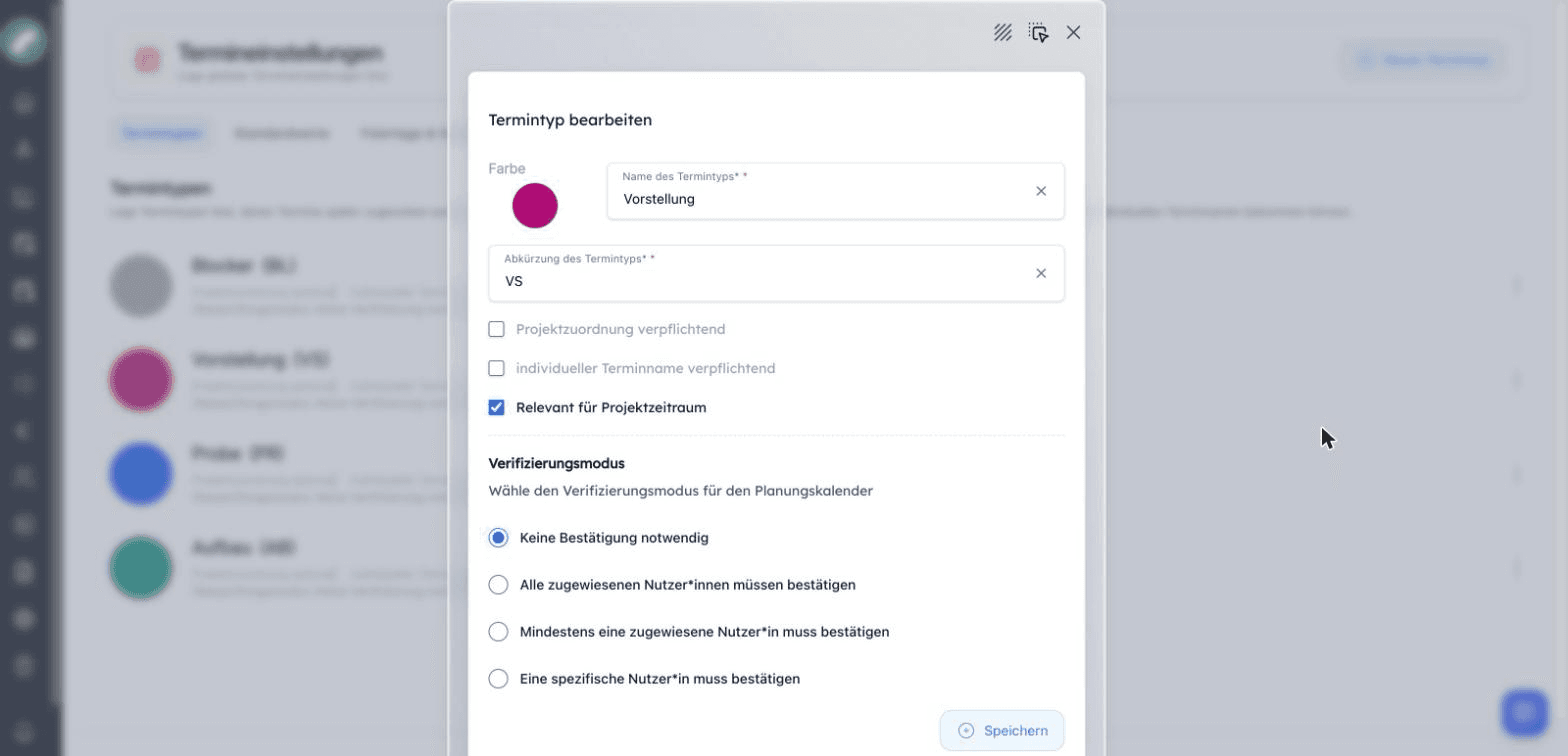
- Name, color and abbreviation (max. 4 characters) — this is how the type appears on every event card,
- Project assignment mandatory — events of this type need a project,
- Individual event name mandatory — enforces a distinct name per event,
- Relevant for project period — events of this type count towards the automatically calculated project period,
- Verification mode — whether and by whom events of this type must be confirmed: no confirmation, all named reviewers, at least one, or a specific person.
Which event types are shift-relevant by default (i.e. offered for shift planning in the duty roster) is defined in the shift settings — and can be overridden per project.
Event statuses
The optional event status module adds freely definable statuses to events (e.g. requested, confirmed, cancelled): each with a color, a sortable order and a default status for new events. The module is activated at the top of the status page; the display option Event color by status then colors the calendar by status instead of by event type.
Event properties
Event properties are configurable attributes with an icon and a name (e.g. with audience, loud, catering needed). They appear as checkboxes in the event form, as icons on event cards and as filters in the calendar.
Holidays & school holidays
Under Holidays & school holidays you maintain the public holidays and school holidays (nationwide or regional) that the calendar displays on the day rows.
Timeline presets
The Timeline presets tab manages reusable production schedules (get-in, soundcheck, doors, show …) that can be imported into events.
Standard values
The standard values speed up creating events: default event length (minutes), default start time and all-day by default.
The optional Admission field is also activated here: when the toggle is on, an admission time can additionally be entered on events. Via a display option in the calendar, the admission then appears in the event cards above the existing time information.
Event types affect more than colour. Before creating one, decide whether it extends the project period, requires a project or individual name, needs verification, and should appear in shift planning. Clear names and short, distinct abbreviations make dense views easier to read.
Event properties describe practical effects shared by different types. For example, rehearsal is a type, while loud, with audience, or catering required are reusable properties. This keeps the type list manageable and supports targeted room filters.
Default duration, start time, and all-day state are only starting values and can always be changed in the event form.
Central event settings affect all users and often existing events; personal display options and saved filters remain individual. Before deleting a used type, status, or property, check which existing events reference it.
The visible day window is maintained separately under Calendar settings. Areas, rooms, capacities, and booking access are covered in Rooms, areas & booking access.