The Calendar View
Working with the event calendar — navigation, filters, display settings, daily view and multi-edit
Open the event calendar via Calendar → Calendar in the sidebar. The grid shows days as rows (grouped by calendar week) and rooms as columns; each cell contains that room's events on that day as colored cards with the type abbreviation and time.
The function bar
From left to right:
| Element | Function |
|---|---|
| Time range | Two date fields for the visible range; the arrows page forward and backward one range at a time. Clicking the calendar icon opens the date picker, where a mode is chosen at the top — day, week, month or free selection. In month mode the arrows page through whole calendar months (different month lengths are taken into account), in week mode through calendar weeks. |
| Today / Current week / Current month | Jumps to the common time ranges. |
| Daily view | Hour-based detail view — limited to a maximum of 7 days. |
| At a glance | Compact list display of the events. |
| Project period | Couples the calendar to a project: search for a project or artist, and exactly its period is shown. |
| Zoom | A dropdown for jumping directly between the zoom levels — the smallest level is the month view (saved per user). |
| Multi-edit | Select several events and edit them in bulk — see below. |
| Display settings (gear) | Personal display options — see below. |
| Filter (funnel) | The filter panel — see below. |
| Export | PDF/Excel exports — see Exports. |
| Subscribe to calendar | Personal ICS feed — see Exports. |
| Fullscreen | Fullscreen mode on/off. |
If events lack a room, a red notice appears above the grid ("n event(s) without a room!") — clicking it opens the list from which the events can be scheduled after the fact.
Filters
The filter panel narrows the grid down to what you are working on right now. Filters can be stored as saved filters and applied with one click; active filters appear as removable tags. A search field per filter category quickly narrows down the displayed entries.
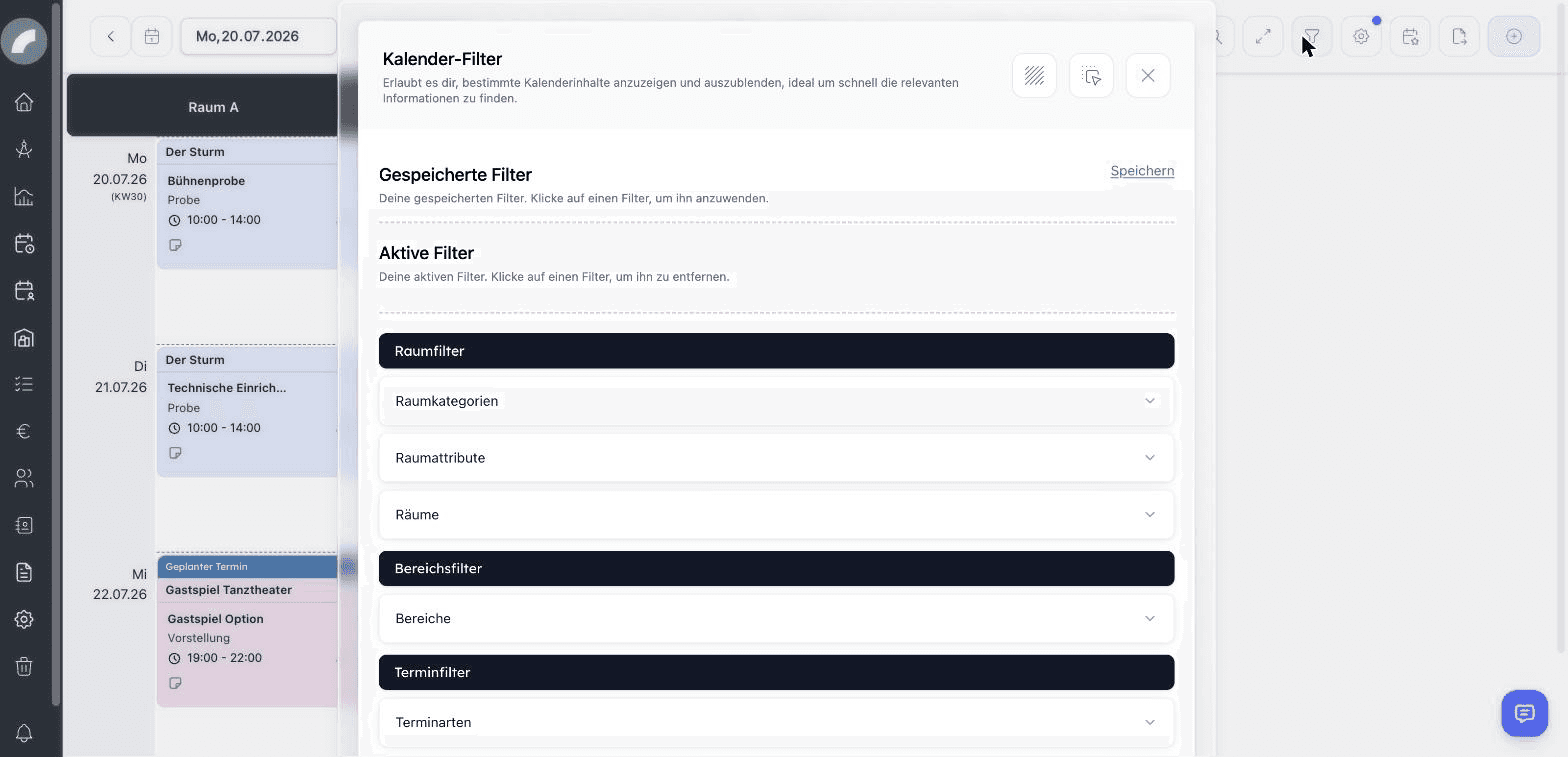
You can filter by room categories, room attributes, rooms, areas (building areas), event kinds (event types), event properties and crafts. On top of that there are quick filters such as loud / not loud, with / without audience, show free rooms and include adjacent rooms — handy, for example, to avoid placing a quiet rehearsal next to a loud event.
Display settings
The gear opens your personal display options (they persist across sessions):
- Appearance — High contrast, Expand days, Event color by status (instead of by event type), Event color by main category of the projects, adjustable room column width
- Visibility — Hide empty rooms, Hide unoccupied days, Show planned events (show entries from the planning calendar), Show project group, Show shifts, Timeline
- Event content — what appears on the event cards: event name, description, project status, project managers, artists, event creator, admission (when the admission field is enabled); in the compact view, artist names can be shown instead of event names
- Share period across all views — when the option is active, the same date stays selected when switching between calendar, inventory and shift plan; when it is inactive, each view remembers its own date per user
Day rows additionally show public holidays (managed in the event settings).
Day remarks
If the day remarks column is activated in the calendar settings, the calendar (and likewise the planning calendar) shows a dedicated column for notes covering the whole day per room — for instance hints for all crafts or organisational specifics. The notes also appear in the duty roster. Two dedicated permissions control who may see and who may edit the column.
Daily view
The daily view shows up to 7 days as an hourly grid per room — ideal for show days. Which part of the day is displayed (e.g. 08:00–24:00) is defined by the day window system setting.
Multi-edit
The multi-edit switch lets you select several events and cells and handle them in bulk:
- Duplicate or delete events
- Duplicate one event into selected cells — select the event, then click the day/room cells it should be copied into
- Create events in several cells at once — first select several day/room cells, then create an event; this creates independent individual events, not one collective event
- Move selected events into one cell — when exactly one cell and at least one event are selected, the events move there together
- Accept / decline requests (for room admins)
- Request verification, approve / decline events (in the approval workflow)
Trash
Deleted events move to the trash for 30 days and can be restored from there.
Click a room heading to open its room view. Clicking an event card opens an editable form when you have permission, otherwise a clear read-only summary. The project symbol links directly to the associated project.
Choosing a view
| View | Best used for |
|---|---|
| Grid | Comparing several days and rooms, finding free space, and dragging events. |
| Month view | Reviewing a complete month at a glance — the smallest level in the zoom dropdown. |
| Daily view | Checking precise time overlaps across up to seven days. |
| At a glance | Reading many events in a compact list. |
| Project period | Working only with one production in its calculated period. |
Zoom, expanded days, and fullscreen affect presentation only. Filters and project mode determine which data is included, which matters before exports.
Month view
The month view is the smallest level in the zoom dropdown. With the display option Expand days disabled, it shows exactly one month at a glance. At zoom levels below 80 %, event cards show their information in a reduced form — the most important details stay visible directly, everything else appears on hover. Card titles follow a clear logic: event name plus project title when both exist; without an event name, the project title is shown — without either, the name of the event type. Room names and the date column move along while scrolling, so orientation is kept even with heavily filled cells.
Show free rooms helps identify suitable new bookings; include adjacent rooms helps assess impacts on neighbouring spaces. Saved filters are personal working views and never change events.
Hours outside the configured daily window remain available but appear more compactly. Multi-day and all-day events remain visible. Multi-edit actions depend on permissions and the selected events' status, so review series, booking requests, and planned events before confirming a bulk action.
When deleting a repeating event, Artwork distinguishes the selected occurrence from the whole series. The 30-day trash protects against mistakes but is not intended as long-term archiving.