Creating Events
The event form — type, times, repetition, room, project and sub-events
Hover over a room/day cell and a plus icon ("Add event") appears — it opens the event form with the day and room prefilled. Clicking an existing event opens the same form for editing.
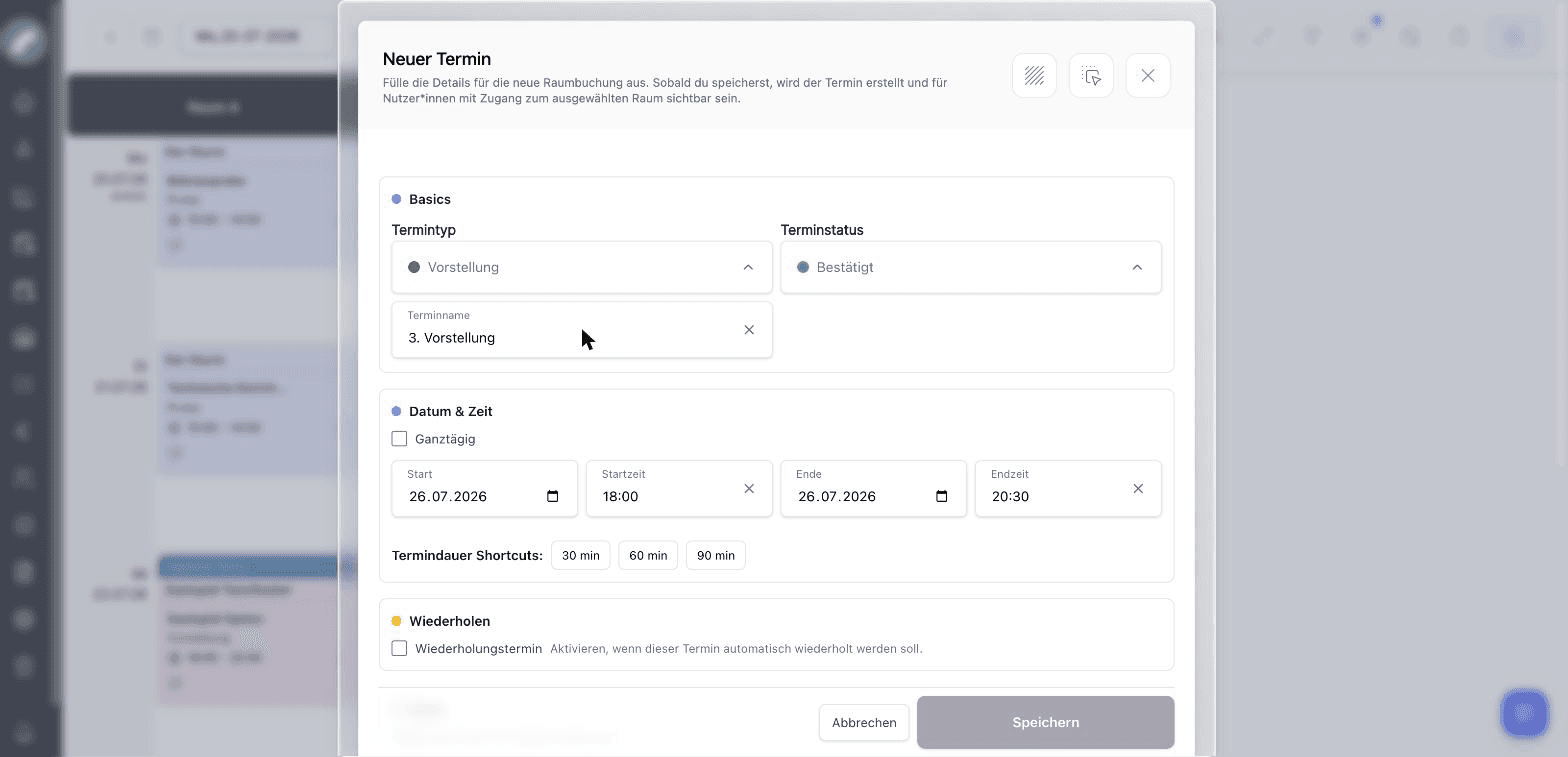
The event form
Basics
- Event type — the category of the event; determines its color and abbreviation in the calendar. Depending on the type configuration, a project assignment and an individual event name may be mandatory.
- Event status — only visible when the status module is active; the default status is preselected.
- Event name — optional (or mandatory if the event type requires it).
Date & Time
All-day or with a start/end time; the event duration shortcuts (30/60/90 min) set the end to a standard duration after the start. The presets (default event length, default start time, "all-day by default") come from the standard values.
If the Admission field is enabled in the standard values, an optional admission time can be entered as well — a calendar display option shows it in the event cards above the time.
In the Repeat section, the Repeating event toggle turns the event into a series: daily, weekly, every 2 weeks or monthly until an end date. Series can later be edited or deleted in bulk.
Room & project
- Room — the room search shows potential conflicts with existing occupancies live. Whether you can book directly or submit a booking request depends on your rights for the room.
- Project — assign the event to an existing project or create a new one on the spot. Events whose type is relevant for the project period contribute to the project's automatically calculated period.
Description & properties
A free-text description ("What do I need to know about this event?") is visible in the calendar and in the project's event list. Below it, tick the applicable event properties (e.g. with audience, loud) — they appear as icons on the event and can be filtered.
Save
Save creates the event — or Request occupancy ("Belegung anfragen") if you may only request the room. Afterwards you can plan shifts on the event or create a timeline.
Sub-events
An event can contain sub-events — e.g. the soundcheck from 16:00–17:00 inside an all-day blocker. Sub-events have their own type, their own times (within the main event, at least 30 minutes), their own properties and description. They appear in the event card below the main event.
Timeline
For show days you can maintain a timeline on the event — the production schedule (get-in, soundcheck, doors, show …) with times. Timeline presets from the shift settings can be imported; the Timeline display option shows timelines in the calendar.
Moving and duplicating events
Events can be dragged into other cells in the grid via drag & drop. Multi-edit duplicates, moves or deletes many events at once. For projects there is additionally the tabular bulk event creation in the project's schedule tab.
The form adapts to event type, room rights, and permissions. Without edit access, users receive a read-only summary of type, status, time, room, project, description, and properties.
Start and end may be on different dates, covering multi-day guest performances, overnight setups, and long blockers. Review the end date when times are identical or the end appears earlier than the start.
Existing projects link directly to the project view. Choosing New project creates it together with the event; detailed master data and team access can then be completed from the project overview. Room admins may respond to a request with a firm or optional commitment and an explanatory comment.
Sub-events are useful for distinct sections within the main booking. Use a separate main event when another room, project, or approval process is required. A timeline is different again: it is an internal production run of show and need not create independent room bookings.
Series and project schedules
When editing or deleting a repeating event, choose deliberately between one occurrence and the series. Use a single exception only for a genuine deviation; update the series for a changed standard time, room, or description.
For productions with many events, the project Schedule tab is faster: add rows, adjust columns, show descriptions, and edit several entries together. Use the main calendar when room conflicts with other projects need to be assessed.