Creating Shifts
Create and edit shifts, define required staff, work with templates
Shifts are created directly in the duty roster (requires the plan shifts permission). Hover over a room/day cell and two icons appear: duplicate (copy an existing cell) and plus (add). The plus opens the shift form:
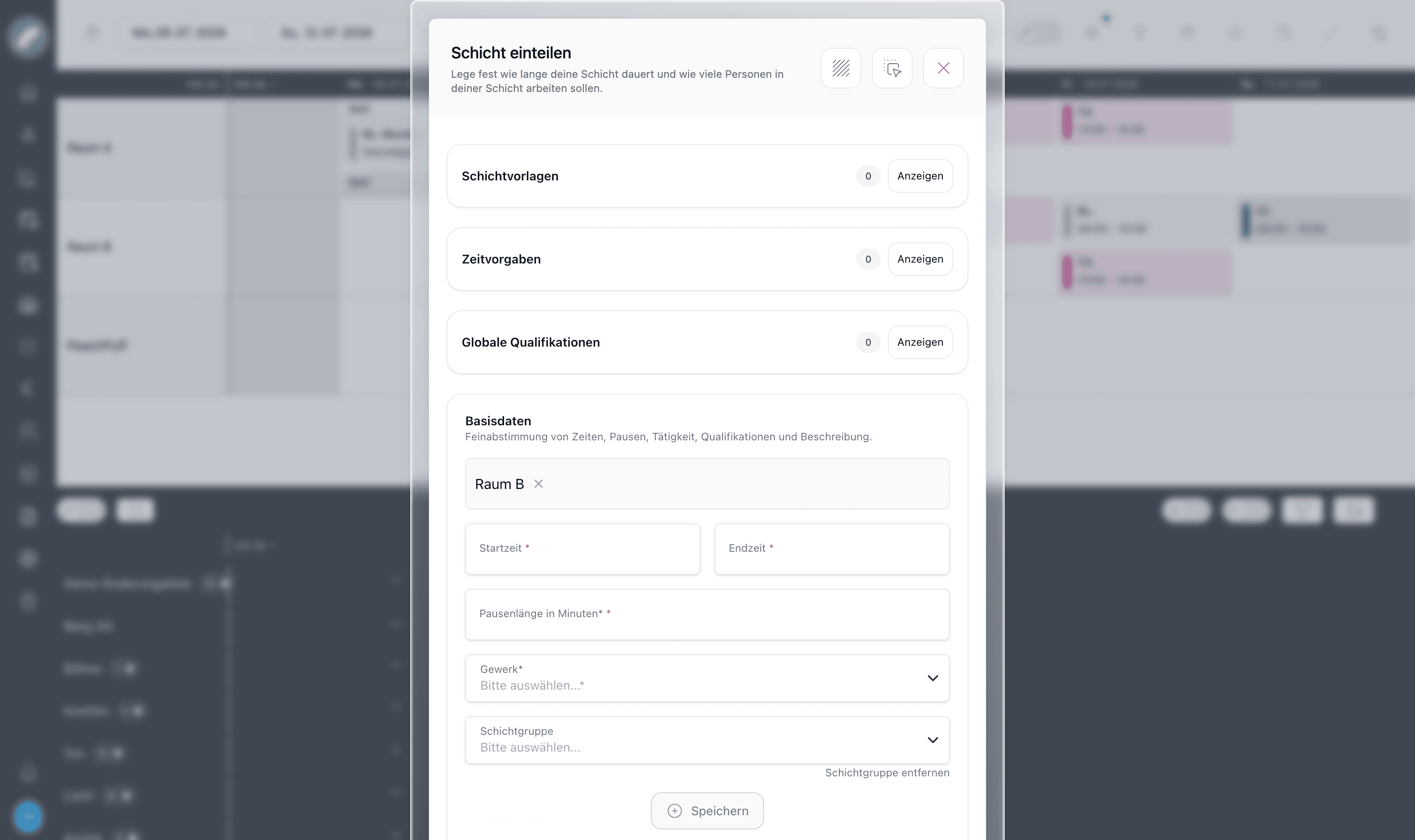
The same form is used for editing — clicking any shift card reopens it.
The shift form
Start from a template (optional)
The three sections at the top speed up recurring planning:
- Schichtvorlagen — shift templates fill the whole form with saved values.
- Zeitvorgaben — time presets apply a saved start/end time and break length (managed in Shift Settings).
- Globale Qualifikationen — cross-craft qualification requirements that apply in addition to the craft's own qualifications.
Fill in the basics
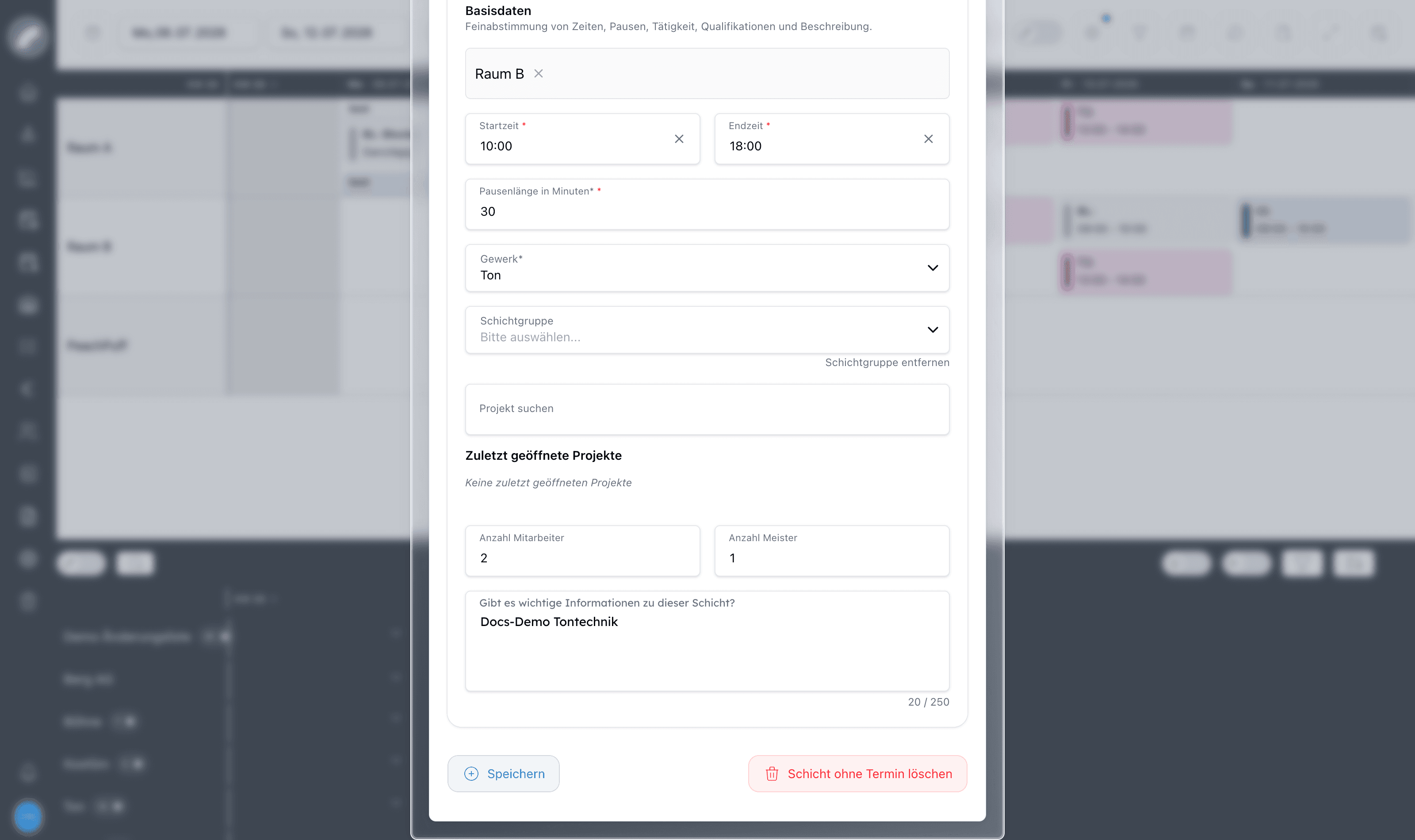
- Room — prefilled from the cell you clicked; standalone shifts keep the room so they appear in the grid.
- Startzeit / Endzeit — the working time. For shifts attached to an event, the shift cannot start before or end after the event. A shift longer than 10 hours triggers a warning.
- Pausenlänge in Minuten — the unpaid break; it may not exceed the shift length.
- Gewerk — the craft. This determines which workers can be assigned and which qualifications are available.
- Schichtgruppe — optionally group related shifts (groups are managed in Shift Settings and can be shown as tags in the grid).
- Projekt — link the shift to a project, so it appears on the project's shift tab and in project-based views.
Define the required staff
After choosing the craft, one counter appears per qualification (e.g.
Anzahl Mitarbeiter: 2, Anzahl Meister: 1). These numbers are the
shift's demand — they drive the occupancy display (1/3) and the "not fully
staffed" reminders later.
A free-text note ("Gibt es wichtige Informationen zu dieser Schicht?") is shown in the grid when Notizen einblenden is enabled.
Save
Speichern creates the shift; it appears immediately as a card in the corresponding cell. In the edit view, the red button deletes the shift.
Where shifts can be created
Besides the plus icon on a cell, shifts can be created:
- On an event — from the event in the calendar or the project's shift tab. Event shifts appear inside the event's card in the duty roster and inherit its date.
- In bulk — with the Edit (pencil) switch in the function bar, select several room/day cells and add shifts to all of them at once (also by template or preset group). The same mode deletes in bulk.
- In the daily view — every room section has explicit "Termin hinzufügen" / "Schicht hinzufügen" buttons.
- As a repeat shift — a shift can be repeated over several days ("Wiederholungsschicht"); when staffing one shift of a series you choose whether the assignment applies to this shift only or to all following ones.
Shift templates
In the shift settings (tabs Shift templates and Shift template groups) you manage reusable shift definitions — each carries times, break, craft, description and qualification demand. Templates can be bundled into template groups so a standard day of a certain production type is applied in one action. The neighboring tab manages timeline presets, reusable production schedules (get-in, soundcheck, doors, show …) that can be imported into an event.
Templates, time presets and shift groups are administered in Shift Settings — the shift form only consumes them.
Choosing the right kind of shift
Event shifts inherit the date and context of an existing calendar event. Standalone shifts are better for duties without a calendar entry and may be linked only to a room or project. They still appear in daily and list view, subject to the active filters and project context.
Planning many shifts at once
In multi-edit mode, select the room/day cells first and then apply individual presets or complete preset groups. The selection previews times, crafts, and qualification demand and can optionally assign a project. This is useful for recurring weekly plans and standard production days. Existing cells can also be duplicated; review rooms, events, and times after copying.
Changes to time, craft, demand, description, and staffing are recorded in the shift history. If the shift is already committed, they may additionally appear in the change overview.