Shift Settings
Configure crafts, qualifications, templates, working-time rules and the approval workflow
All global configuration of the shift module lives under System → Shift settings and is organized in tabs:
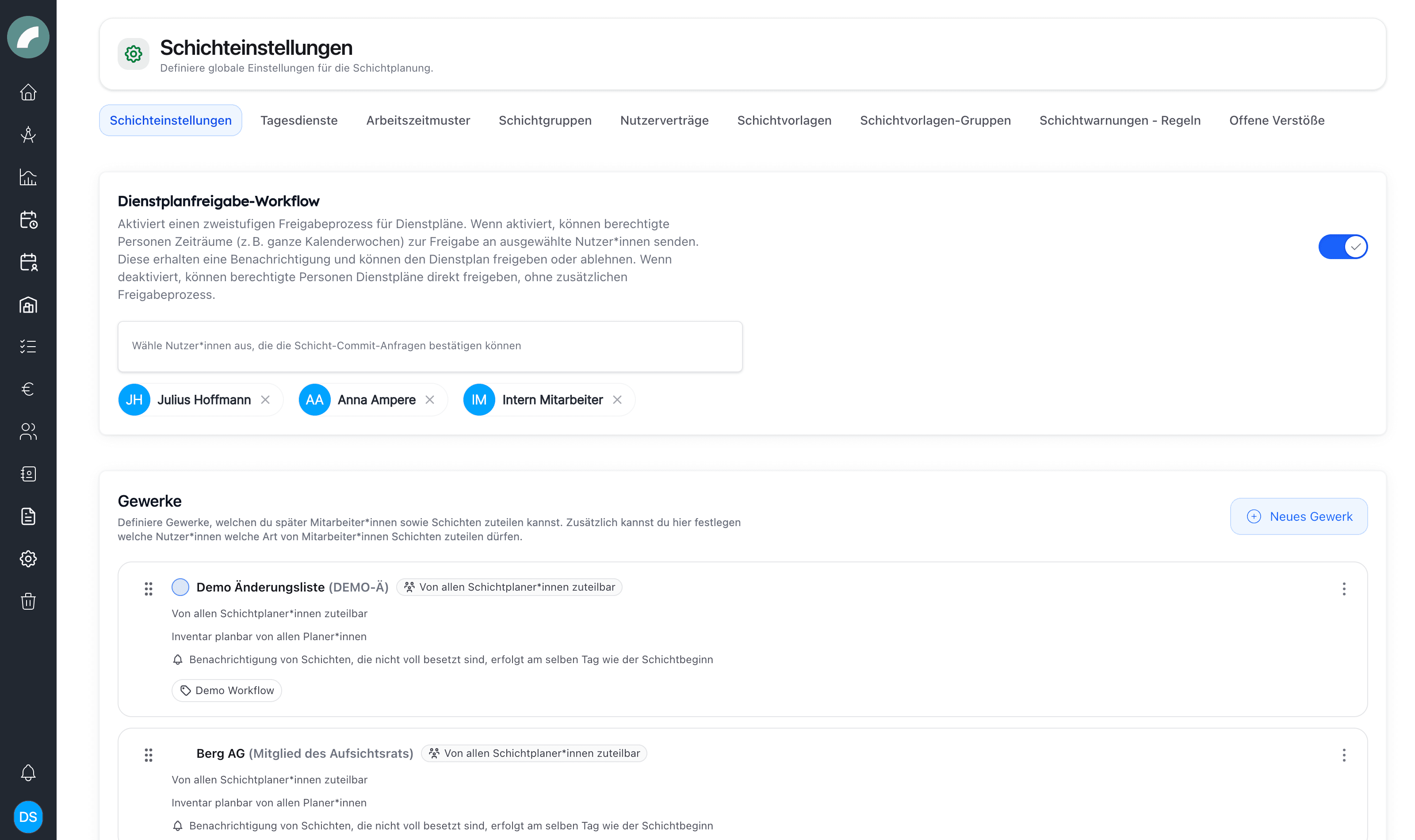
Settings map
| Area | Effect in shift planning |
|---|---|
| Base settings | Approval workflow, crafts, planners, event types, sorting, calendar feed, and overbooking |
| Day services | All-day markers assignable to a person's day |
| Working-time patterns | Recurring basis for target hours |
| User contracts | Contract values, validity, balances, and rule assignment per person |
| Shift-warning rules | Thresholds, colours, compensation defaults, and active checks |
| Shift-template groups | Reusable combinations of several templates |
All master data and templates are covered on this page. The complete warning workflow is covered in Working-time rules, violations & compensation days.
Approval workflow
The Dienstplanfreigabe-Workflow toggle enables the two-stage commit process described in Committing & Approval. Below the toggle you select the users who may approve commit requests — this list, not a permission, determines the approvers. When disabled, authorized planners commit directly and the workflow pages disappear from the menu.
Crafts (Gewerke)
Crafts are the backbone of shift planning. Each craft has:
- a name, abbreviation and color — the abbreviation and color identify the craft on every shift card,
- the list of workers (employees, freelancers, service providers) assigned to it,
- per worker type, the planners who may assign that type to this craft's shifts — e.g. only the department head may book external providers,
- the qualifications available in this craft,
- an optional universally applicable flag: workers of such a craft may be scheduled into any craft's shifts,
- a per-craft reminder setting: how many days before shift start planners are notified about not-fully-staffed shifts,
- inventory planning permissions ("Inventar planbar von…").
Qualifications
Qualifications (e.g. Meister, Mitarbeiter, Fachkraft) each have an icon and an availability flag; the "considered for new shifts" option controls whether a qualification is proposed by default when a shift is created. Global qualifications exist across crafts and can be demanded on any shift in addition to craft qualifications. Workers are given their qualifications per craft in their profiles.
For reliable suggestions, qualifications must be maintained on both sides: as a requirement on the shift and as a capability on the worker.
Time presets
A time preset stores a recurring combination of start, end, and break, for example “Early shift 08:00–16:30”. It speeds up the shift form without setting craft, qualifications, or other shift data. If more than the time recurs, use a shift template.
Day services (Tagesdienste)
Day services are all-day duty markers (with icon and color) that can be pinned to workers' day cells in the roster — e.g. office duty or on call — without being a timed shift.
Working-time patterns & user contracts
Arbeitszeitmuster define recurring weekly working-time schemes; Nutzerverträge store per-user contract parameters (weekly hours etc.) that feed the hour balances in the workforce panel.
Shift groups
Shift groups connect related shifts that already exist. They can appear as tags on shift cards and can trigger a warning when a person is assigned to several shifts of the same group on one day.
| Tool | Purpose |
|---|---|
| Template group | Use several shift templates together when creating shifts |
| Shift group | Mark related concrete shifts and check assignments |
Templates
A shift template copies recurring information into a new shift. Values remain editable before saving; templates are starting points, not locked shift types. Use recognisable names such as “Evening admission – Front of house” instead of “Standard”.
Shift-template groups combine several templates into one sequence, such as setup, event, and strike. Deleting a group leaves its individual templates intact. Practical use is explained under Creating shifts.
Shift warnings — rules & violations
Schichtwarnungen – Regeln define working-time rules (rest periods between shifts, maximum continuous working time, minimum breaks …), which can be bound to specific contracts. Assignments that break a rule appear under Offene Verstöße (open violations), where planners resolve them, document a manual violation, or grant compensation days. A separate dashboard under Shift plan → Compensation days overview tracks granted and open compensation days.
Supported checks cover daily and weekly maximum hours, consecutive working days, and rest before workdays, public holidays, or between shift groups. The user's contract determines which rules apply.
Miscellaneous toggles
- Sort by first name — how workers are sorted throughout the shift plan
- Calendar feed shows all shifts — whether the ICS feed includes all shifts or only committed ones
- Allow shift overbooking — whether planners may assign more workers than a shift requires
- Warn on multiple assignments — whether assigning someone who is already scheduled triggers a warning
- Shift confirmation by employees — scheduled people can accept or decline committed shifts in their own operational plan — see Committing & Approval
- Shift-relevant event types — which event types are offered for shift planning by default (projects can override this per project)
Contracts, violations, and compensation time
Contract values and their validity periods provide the basis for target hours, work-time rules, vacation, and overtime. Maintain date ranges carefully so past and future weeks use the appropriate contract.
A violation identifies the person, period, rule, and affected work times. Planners can correct the schedule, ignore a justified exception with a reason, add a manual violation, or record one or more compensation days with a deadline and explanation.
An open compensation entitlement is later assigned to a concrete date. Artwork checks existing shifts and special day conditions and may offer to remove shifts. Half days in the morning or afternoon are supported, and both granting and revoking remain documented.
Personal planning preferences
Open crafts and qualification groups, worker sorting, compact mode, visible period, filters, and display options are saved per user. Two planners can therefore work with different perspectives without changing the shared duty roster.